
Bow Numbers
Automatically assign and clear bow numbers for entries in your regatta.
Overview
Bow numbers are short numeric identifiers you can assign to entries. They’re useful for check-in and on-the-water identification, and they can be shown in public regatta lists (for example, the Scratch Sheet).
RegattaHub can assign bow numbers automatically using a simple setup wizard. You can also clear all bow numbers if you need to reassign them.
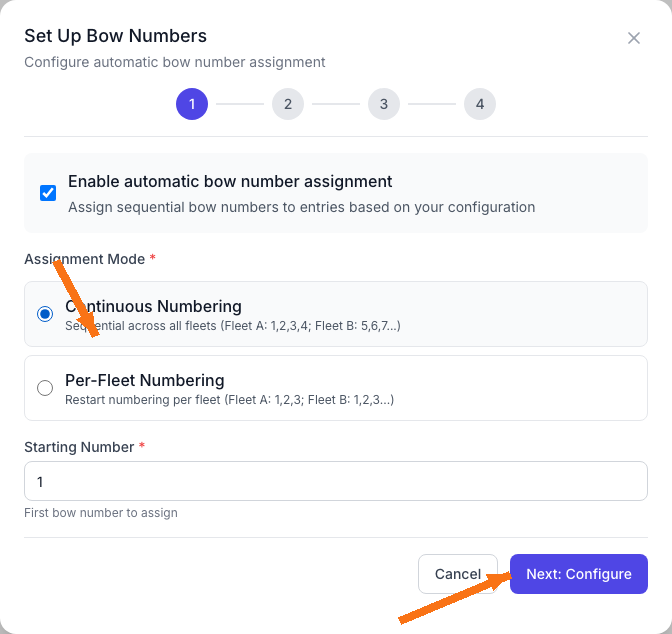
Choose Continuous Numbering if you want unique bow numbers across all selected fleets. Choose Per-Fleet Numbering if each fleet can reuse numbers (Fleet A: 1,2,3… and Fleet B: 1,2,3…).
Prerequisites
- Admin access to the regatta
- At least one class/fleet set up
- Entries created (or imported) for the regatta
Where to find Bow Numbers
- Open your regatta’s Admin dashboard
- Click the Utilities tab
- Find the Bow Numbers card
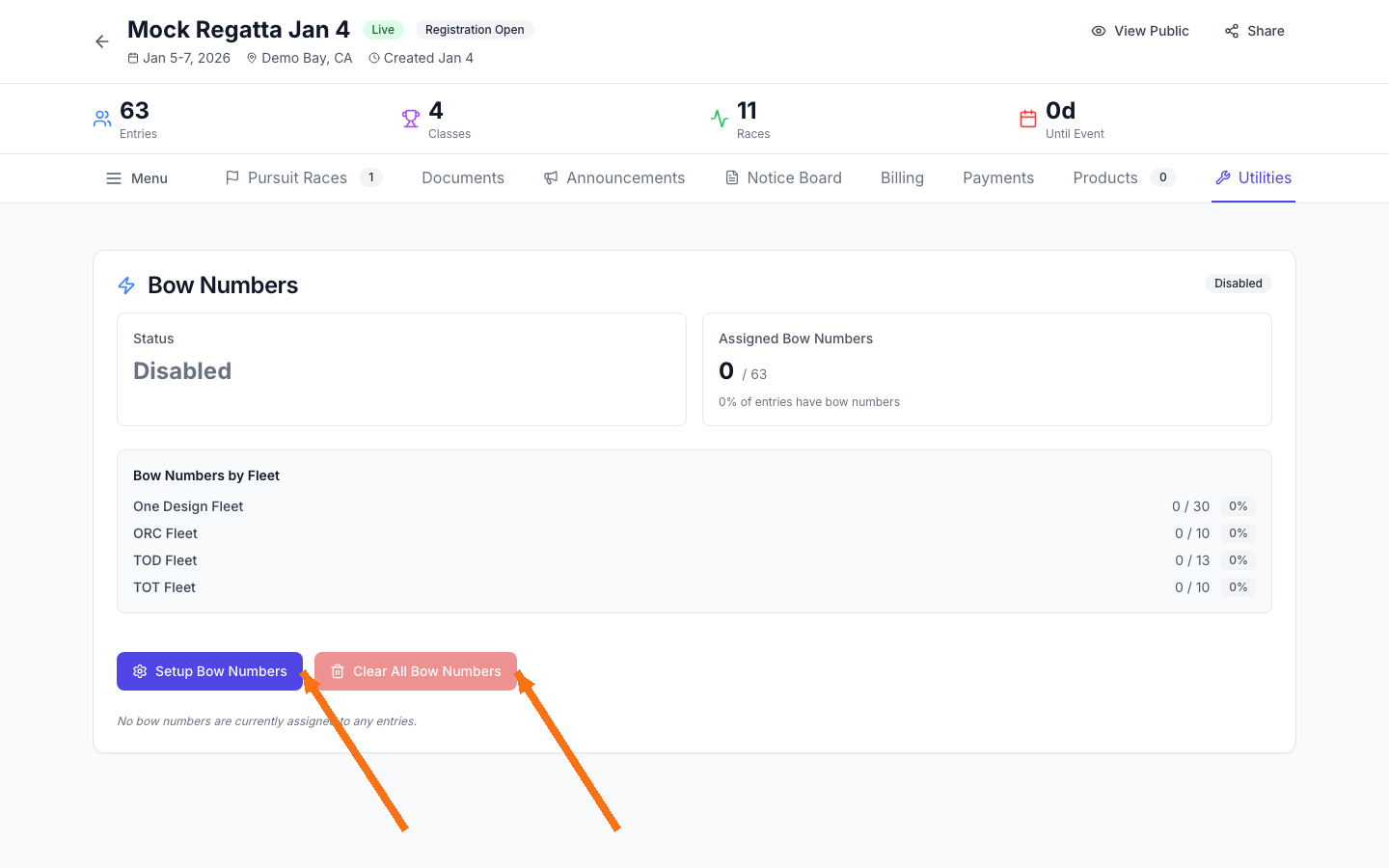
Set up bow numbers
In the Bow Numbers card, click Setup Bow Numbers to open the setup wizard. The wizard walks you through 4 steps: configure, select classes, review, and apply.
Step 1: Configure
- Leave Enable automatic bow number assignment checked to assign sequential numbers based on your configuration.
- Select an Assignment Mode (Continuous or Per-Fleet).
- Set a Starting Number (the first bow number to assign).
Click Next: Configure.
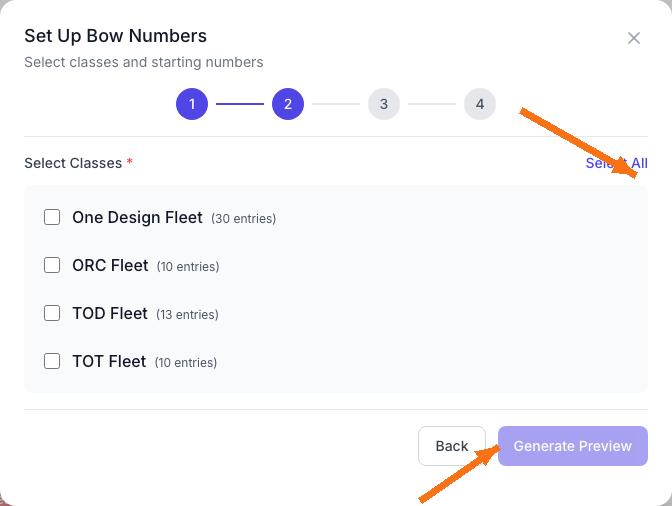
Step 2: Select classes
- Select the classes you want to assign bow numbers to (or click Select All).
- Click Generate Preview to see the proposed assignments.
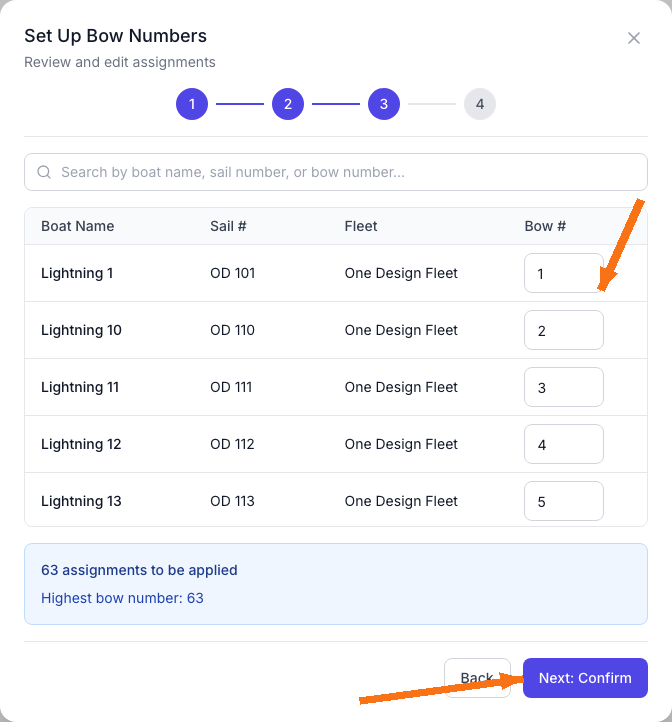
Step 3: Review and edit
Review the preview table. You can change any bow number before applying.
- Use the search bar to find a specific boat by boat name, sail number, or bow number.
- Edit the values in the Bow # column as needed.
- Confirm the total number of assignments and highest bow number shown at the bottom.
Click Next: Confirm.
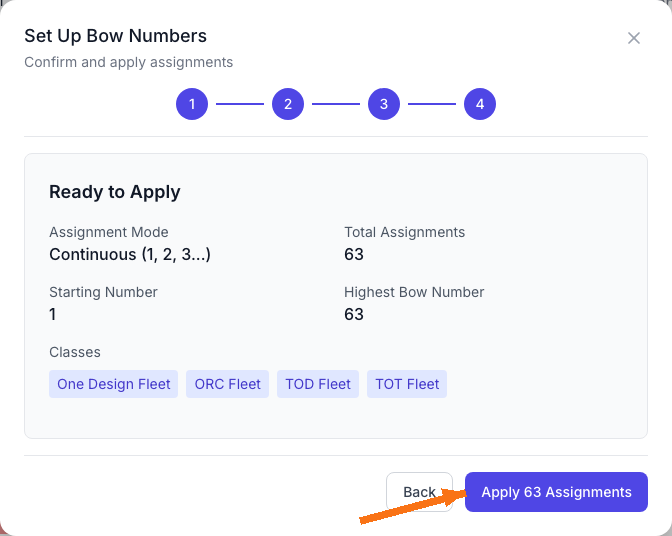
Step 4: Confirm and apply
Review your settings, then click Apply (for example, Apply 63 Assignments).
Clear bow numbers
To remove bow numbers from all entries in the regatta, click Clear All Bow Numbers in the Bow Numbers card. This is useful if you need to restart numbering from a new starting number or change modes.
- The clear button is disabled until at least one bow number is assigned.
- After clearing, you can run Setup Bow Numbers again to generate a new set of assignments.
Troubleshooting
Bow numbers don’t look right
- Run Setup Bow Numbers again and adjust values in the preview (Step 3), then apply.
- If you want to completely restart, use Clear All Bow Numbers, then re-run setup.
The assigned count doesn’t update
- Refresh the page after applying assignments.
- Check a public list like the Scratch Sheet to confirm bow numbers are visible.