Bulk Upload Entries
Upload a CSV file to quickly add multiple entries to a regatta.
Overview
Bulk Upload lets you create multiple entries at once using a CSV file. This is helpful when you already have a roster of boats (for example, from a yacht club spreadsheet) and want to get them into RegattaHub quickly.
- Duplicate sail numbers aren’t imported.
- Entries are created with an approved status.
- Skippers with existing accounts will see their entries in their dashboard.
Prerequisites
- You are an admin for the regatta.
- Your regatta has at least one fleet configured.
- You have a CSV file ready (or you can start from the provided template).
Where to Find It
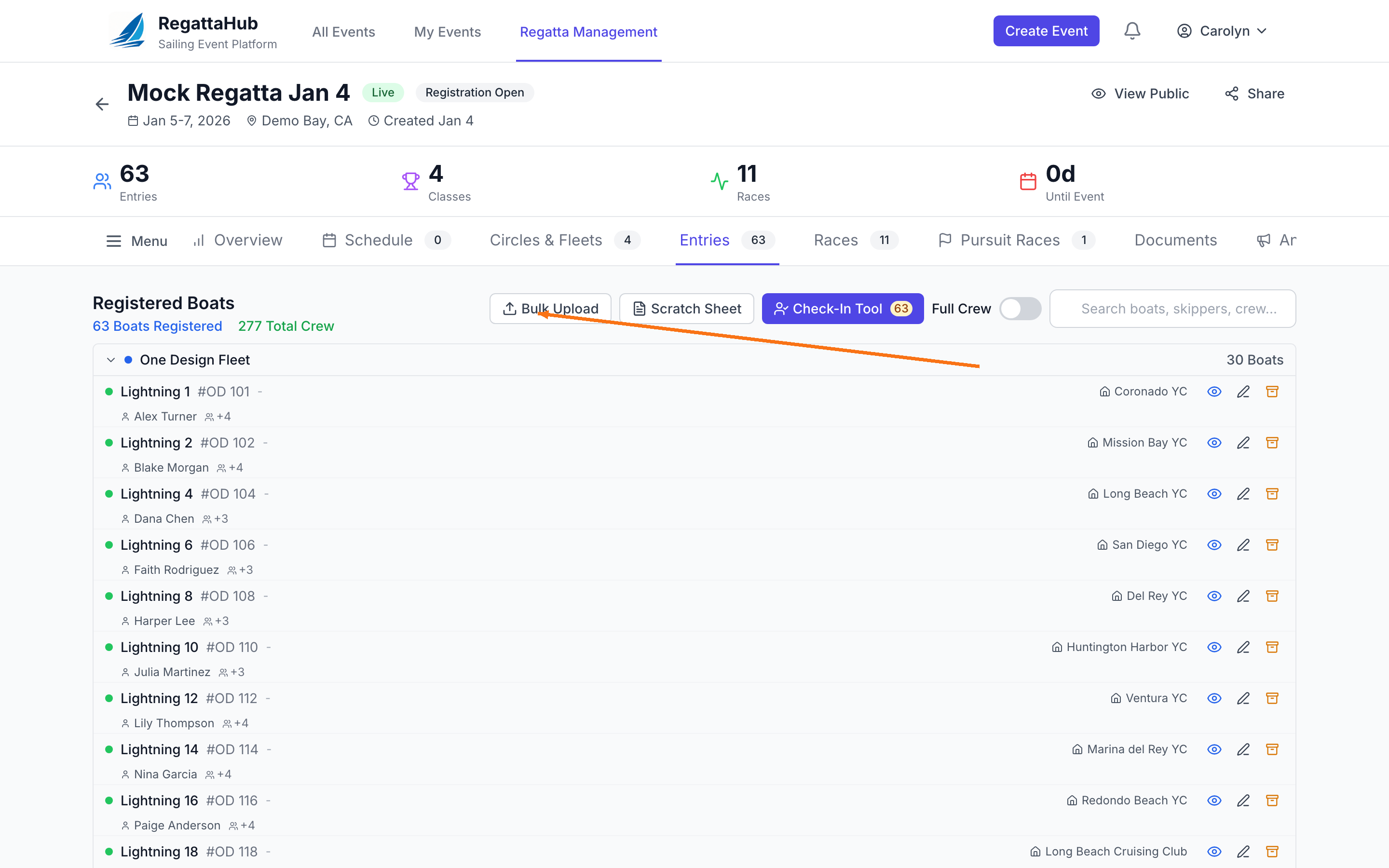
- Open your regatta in Regatta Management.
- Click the Entries tab.
- Click Bulk Upload.
Prepare Your CSV
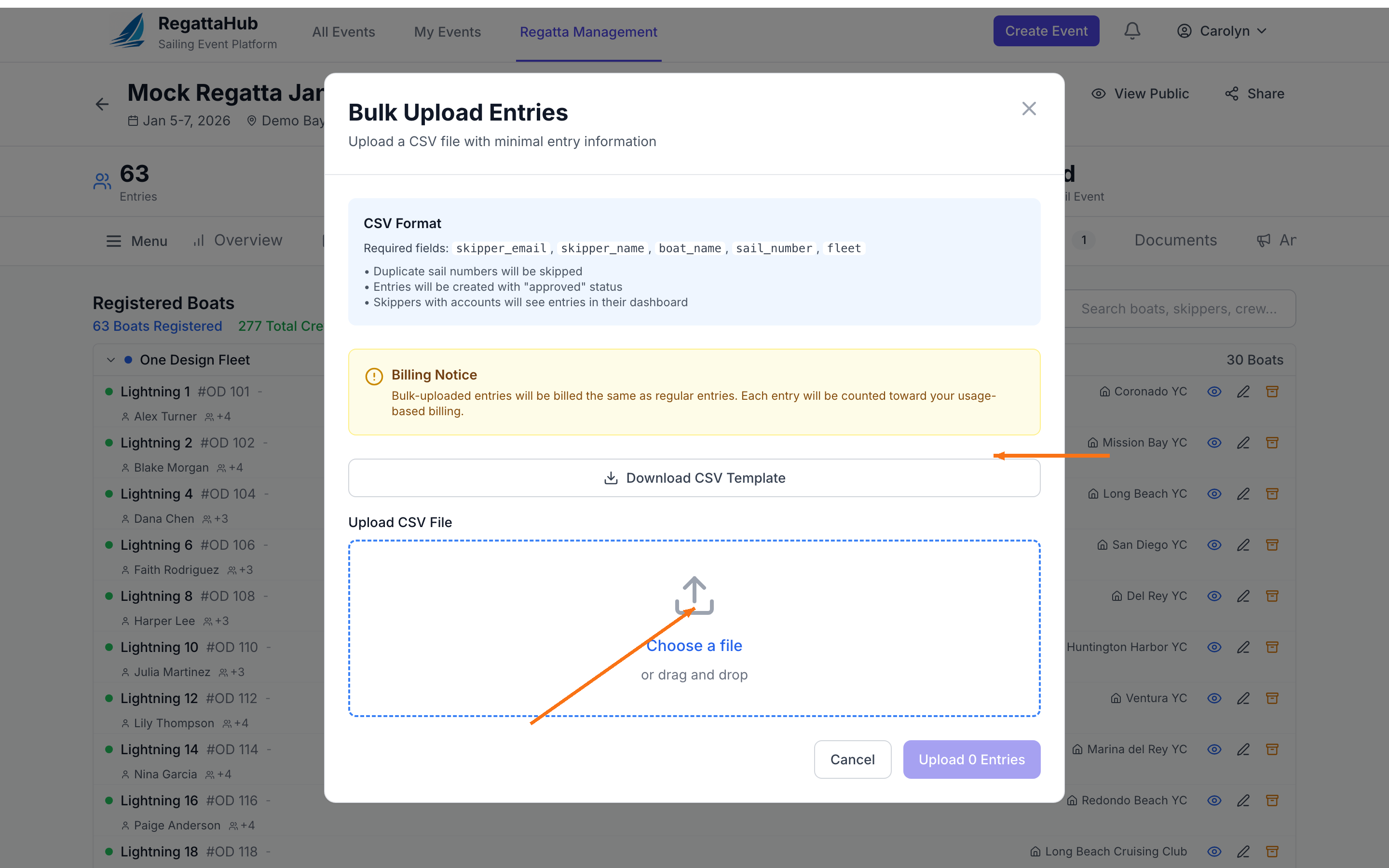
In the Bulk Upload Entries modal, click Download CSV Template. This provides a correctly-formatted template with the required column headers.
The required fields are:
| Column | What to enter |
|---|---|
| skipper_email | Skipper’s email address |
| skipper_name | Skipper’s name |
| boat_name | Boat name |
| sail_number | Sail number (must be unique) |
| fleet | Fleet name (must match a fleet in the regatta) |
If your regatta uses usage-based billing, you’ll see a Billing Notice in the modal. Bulk-uploaded entries are billed the same as regular entries.
Upload Entries
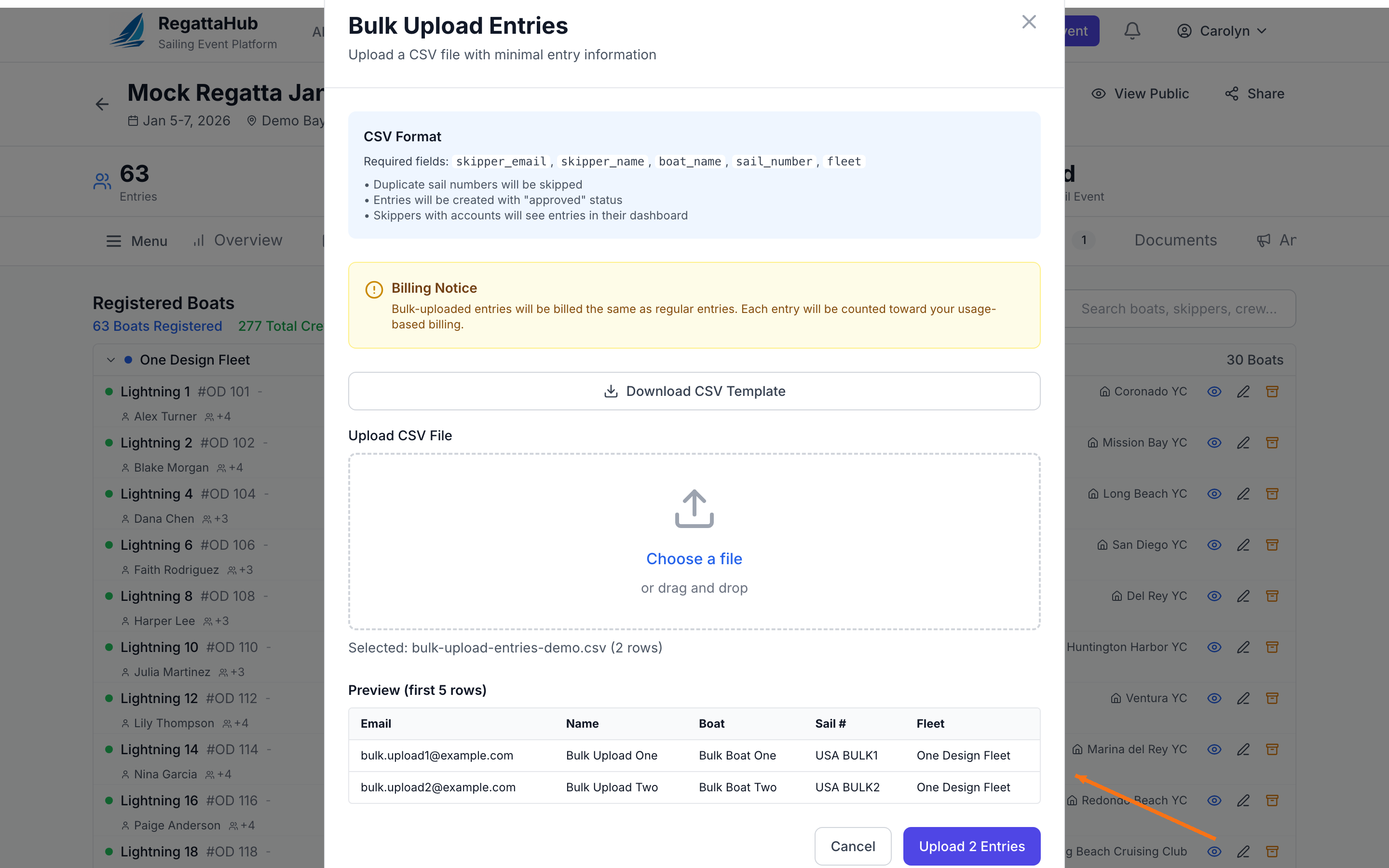
- In the modal, click Choose a file and select your CSV (or drag and drop it into the upload area).
- Confirm the file name and row count shown under the upload area.
- Review the Preview (first 5 rows) table.
- Click Upload N Entries to start the upload.
Review Results
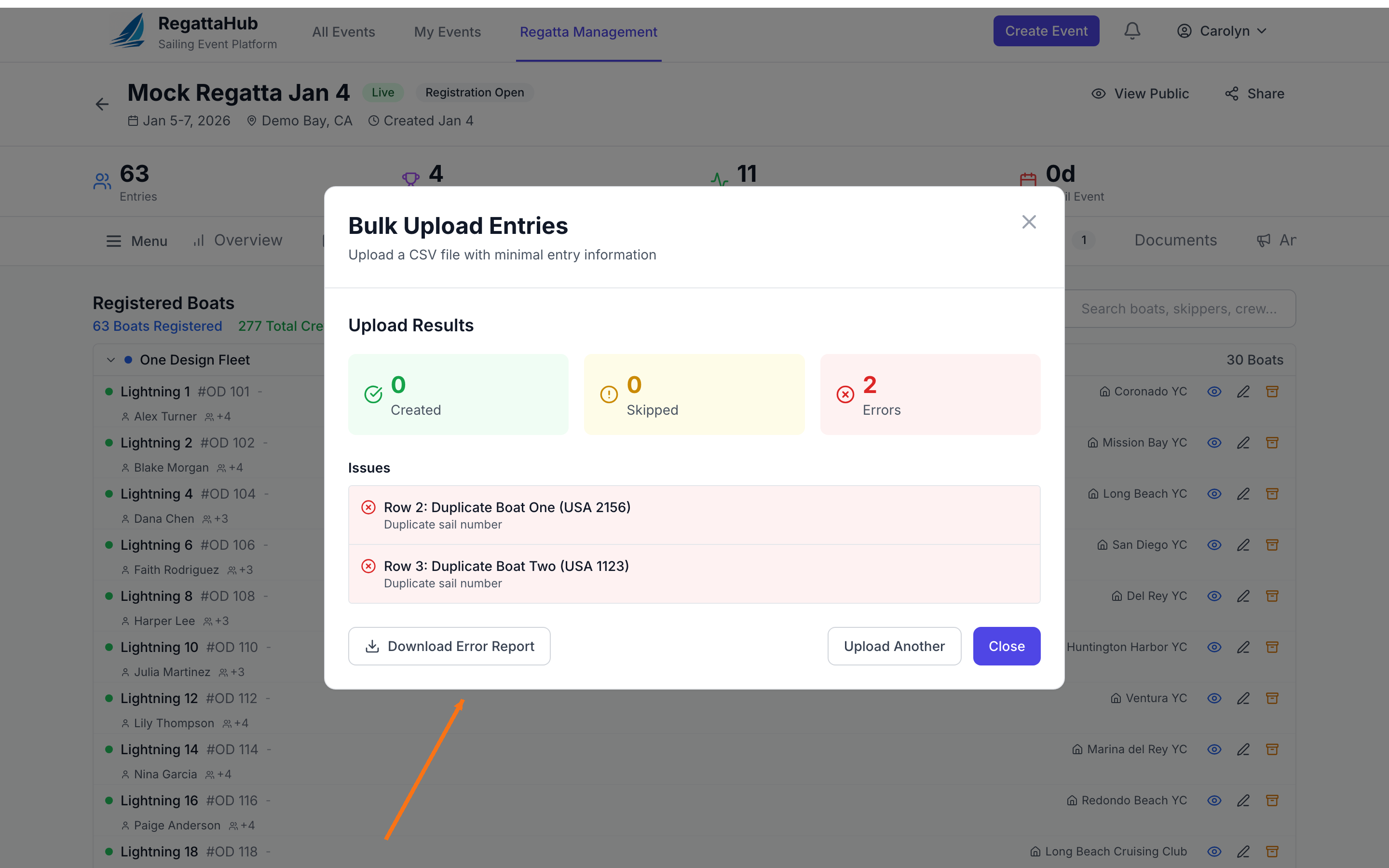
After uploading, RegattaHub shows a summary:
- Created: Entries successfully created.
- Skipped: Rows that were ignored.
- Errors: Rows that couldn’t be imported (for example, a duplicate sail number).
If there are errors, click Download Error Report, fix the CSV, then click Upload Another to try again.
Troubleshooting
I don’t see the Bulk Upload button
- Make sure you’re viewing the regatta in Regatta Management (admin view), not the public view.
- Confirm you have admin access for the regatta.
My uploaded entries don’t appear
- Close the modal and refresh the page.
- Use the search bar on the Entries tab to confirm the new boat name or sail number exists.
I’m getting errors on certain rows
- Download the error report and fix the reported issues (common issues are duplicates or a fleet name that doesn’t match).
- Re-upload the corrected CSV.