
Managing fleets and circles after event creation
After creating your regatta and defining sailing classes, you need to organize how those classes will race. This section guides you through organizing classes into racing circles and managing fleets for race day operations.
Understanding the Hierarchy
The RegattaHub organization system uses two levels: Circles and Fleets. Understanding these relationships is critical to proper race organization.
Fleets
Racing Circles
Accessing Circles & Fleets
From Admin Dashboard

- From the main navigation, click “Regattas”
- Select your regatta from the list
- Click “Manage” to open the admin dashboard
- From the main navigation, click “Regattas”
- Select your regatta from the list
- Click “Manage” to open the admin dashboard
- Look for the tab navigation bar
- Click “Circles & Fleets” tab
- This is typically the third or fourth tab after “Overview” and “Entries”
- Look for the tab navigation bar
- Click “Circles & Fleets” tab
- This is typically the third or fourth tab after “Overview” and “Entries”
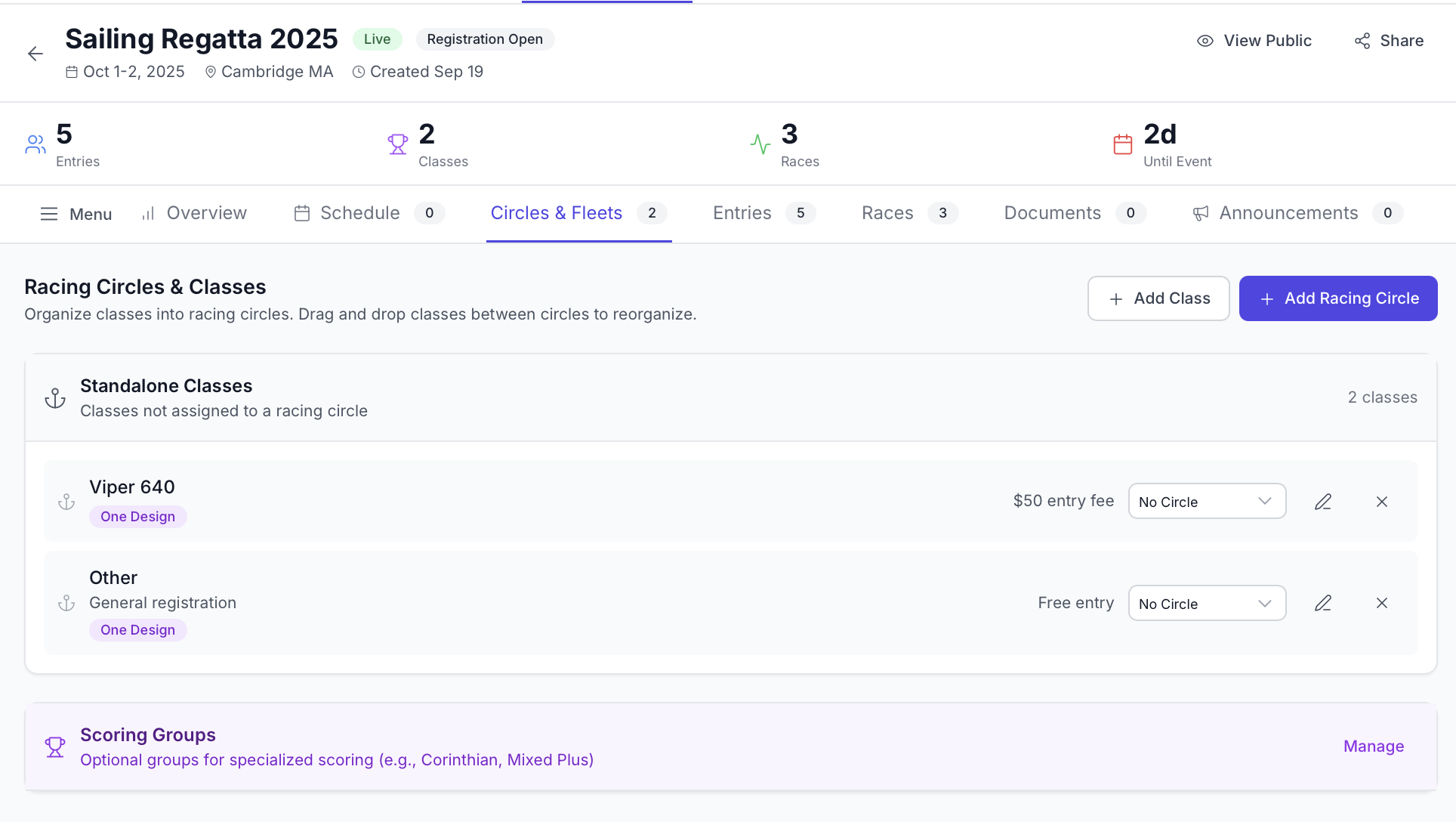
Initial View
When you first access Circles & Fleets, you’ll see:
Creating Your First Racing Circle
Racing circles group classes that will race together, share start times, or use the same course area.
Step 1: Click “Add Racing Circle”
- Locate the “Add Racing Circle” button in the top-right corner
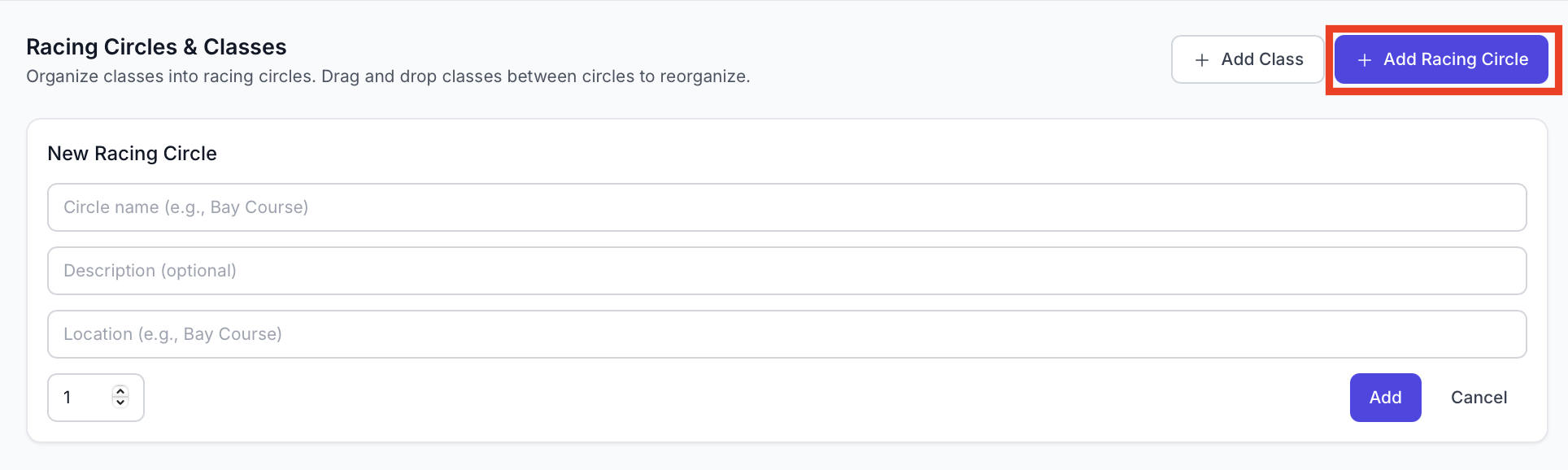
Step 2: Configure Circle Properties
The circle creation form has several fields:
- Circle Name (Required)
- Description (Optional)
- Location (Optional)
Step 3: Save the Circle
- Review all fields for accuracy
- Click the “Add” button to create the circle
- Click “Cancel” if you want to discard changes
Assigning Fleets to Circles
Once you’ve created racing circles, you can assign classes to them. Classes assigned to circles become “fleets” within those circles.
Understanding Drag-and-Drop
RegattaHub uses a drag-and-drop interface for organizing classes into circles.
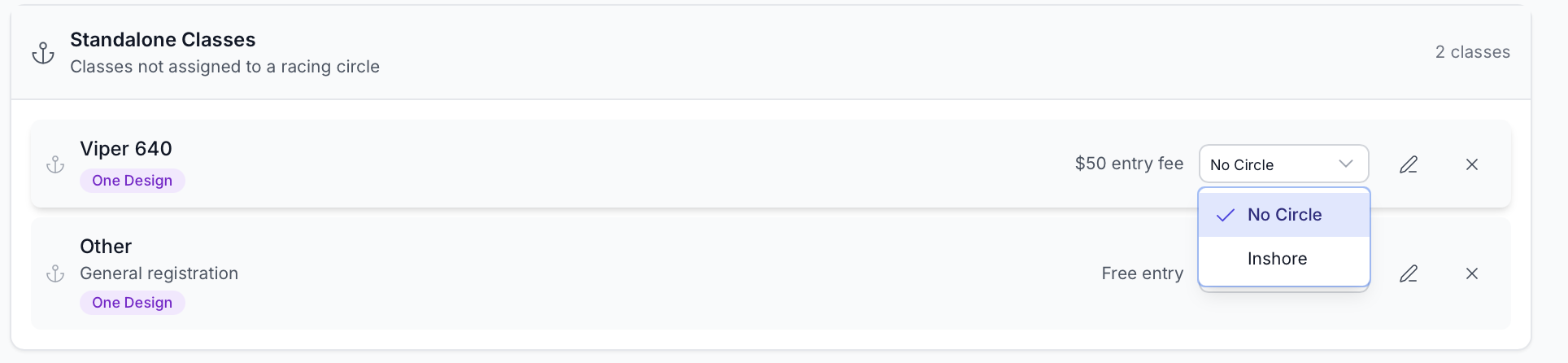
Alternative: Using the Dropdown
If drag-and-drop isn’t working or you prefer a different method:
- Find the class in standalone or any circle
- Find the class in standalone or any circle
- Look for the dropdown menu on the right side of the card
- It will show current circle assignment or “No Circle”
- Look for the dropdown menu on the right side of the card
- It will show current circle assignment or “No Circle”
- Click to open the dropdown
- Select the circle you want to assign this class to
- Select “No Circle” to make it standalone again
- Click to open the dropdown
- Select the circle you want to assign this class to
- Select “No Circle” to make it standalone again
- The change happens immediately
- The class moves to the selected circle
- The change happens immediately
- The class moves to the selected circle
Managing Fleets Within Circles
Viewing Circle Details
Each circle displays:
Reordering Fleets Within a Circle
Fleets are displayed in the order they were added. While the interface doesn’t currently support reordering by drag-and-drop, you can reorganize by:
- Moving fleet out of circle (to standalone)
- Moving other fleets to adjust order
- Moving fleet back to circle in desired position
Editing Fleet Properties
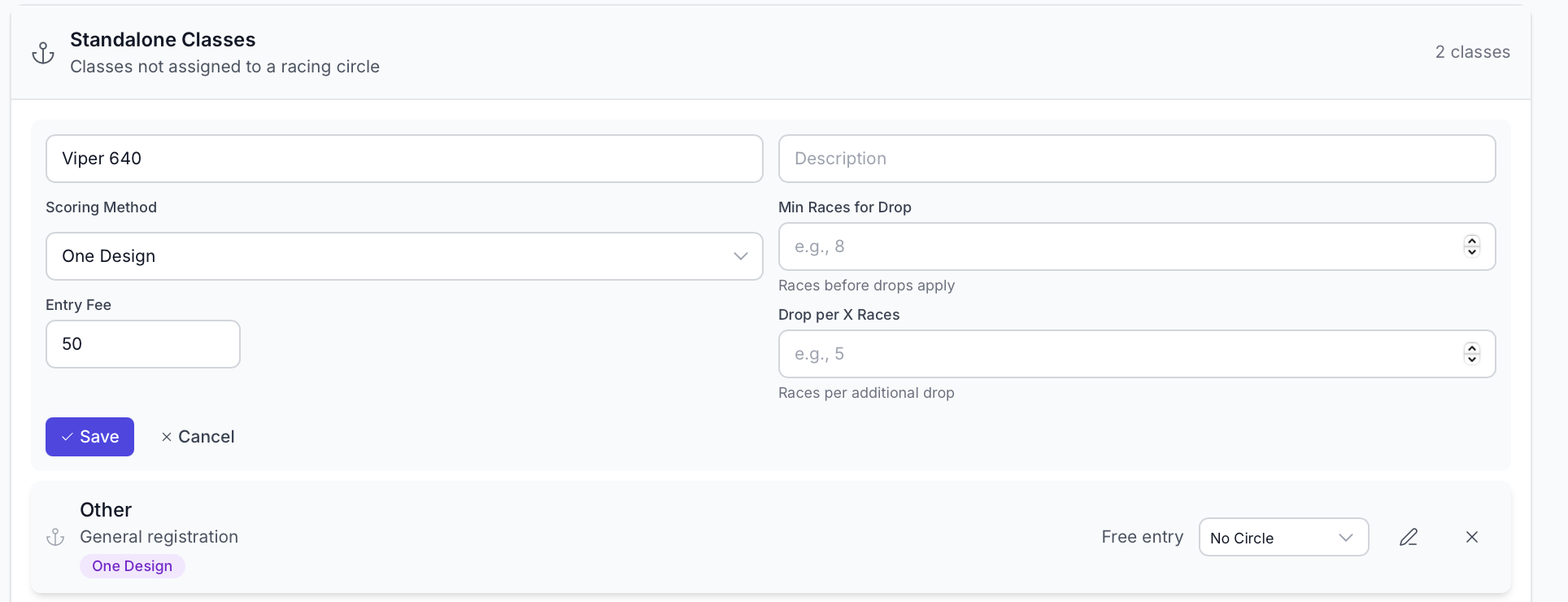
- Locate the pencil icon on the fleet card
- Click to enter edit mode
- Locate the pencil icon on the fleet card
- Click to enter edit mode
- Fleet name
- Description
- Scoring type (⚠️ cannot change after races created)
- Entry fee
- Drop race settings (min races, drop per races)
- Fleet name
- Description
- Scoring type (⚠️ cannot change after races created)
- Entry fee
- Drop race settings (min races, drop per races)
- Click “Save” (checkmark icon) to apply changes
- Click “Cancel” (X icon) to discard changes
- Click “Save” (checkmark icon) to apply changes
- Click “Cancel” (X icon) to discard changes
- Once races are created for a fleet, scoring type is locked
- Changing scoring type after races exist would invalidate results
- If you must change scoring type, delete all races first
- If you change drop race settings for a fleet with published races
- System will warn you that standings will be recalculated
- Confirm you want to proceed
- All standings update automatically
Standalone Classes
Classes that are not assigned to any racing circle are called “standalone classes.”
Understanding Standalone Classes
Managing Standalone Classes
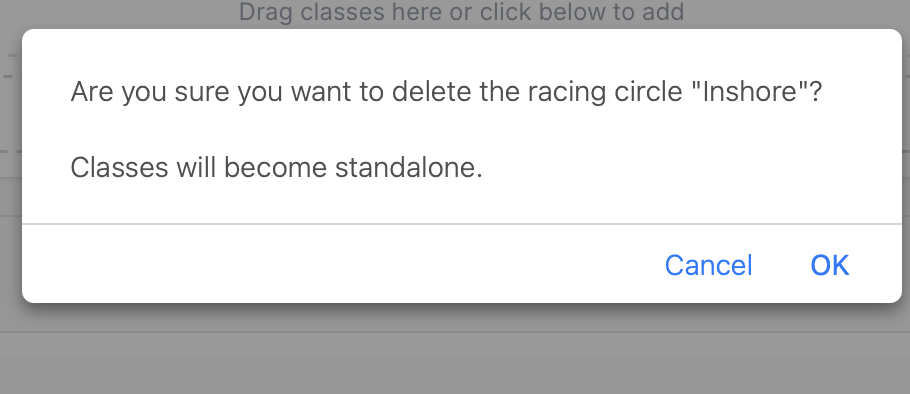
Deleting Circles