
Creating Races
The race schedule is the foundation of your regatta's scoring system. Each race you create represents a scored competition for one or more classes. This is where you define when races happen, which classes participate, and the conditions under which they'll be scored.
This guide will teach you everything you need to know about creating and managing the race schedule in RegattaHub.
You should have:
- Admin permissions for the regatta
- At least one fleet/class configured
- Understanding of your regatta's format (how many races, which classes race together)
- Knowledge of scoring systems your classes use (PHRF, ORC, One Design)
You cannot create races until you have at least one fleet configured
Understanding Races in RegattaHub
What is a Race?
In RegattaHub, a race is a single scored competition for one fleet/class. Each race:
- Belongs to exactly one fleet/class
- Has a scheduled start date and time
- Contains finish times and results for boats in that fleet
- Produces scores that count toward the series standings
- Has a status (draft, published, finished, etc.)
Understanding Race Organization
RegattaHub organizes races hierarchically to mirror real-world regatta structure:
Racing Circle (e.g., "Offshore Circle")
├── Fleet (e.g., "PHRF Spinnaker")
│   ├── Race 1 - PHRF Spinnaker
│   ├── Race 2 - PHRF Spinnaker
│   └── Race 3 - PHRF Spinnaker
├── Fleet (e.g., "PHRF Non-Spinnaker")
│   ├── Race 1 - PHRF Non-Spinnaker
│   ├── Race 2 - PHRF Non-Spinnaker
│   └── Race 3 - PHRF Non-Spinnaker
Racing Circle: A group of fleets that race together on the same course (configured in Section 3)
Fleet: A class of boats using the same scoring system (configured in Section 3)
Race: A single scored competition for one fleet
How Races Relate to Scoring
Understanding how races fit into the scoring workflow:
- Create Race → Define when and how the race happens
- Enter Finishes → Record finish times and positions during/after the race
- Calculate Scores → RegattaHub automatically calculates corrected times and points
- Publish Results → Make results visible to participants
- Update Series Standings → Race points contribute to overall standings
Part 3: Accessing the Races Tab
Navigation Path
Navigation: Admin Dashboard → Races Tab
- From the RegattaHub home page, click Admin in the top navigation
- Select your regatta from the list
- Click the Races tab in the dashboard
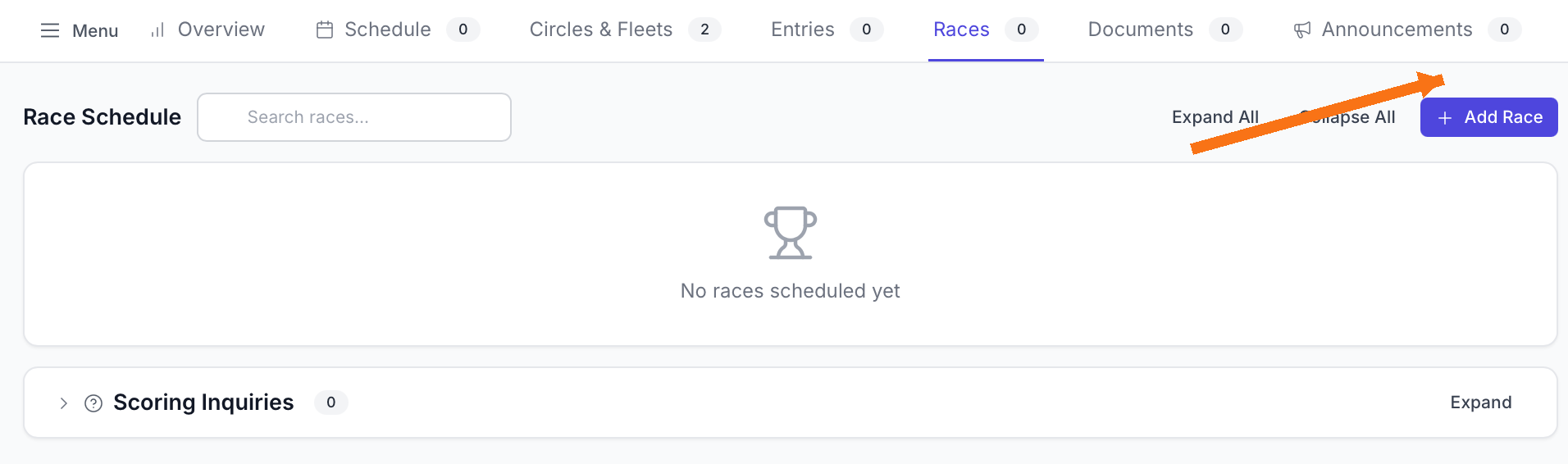
You'll arrive at the Race Schedule page, which displays all your races organized by circle and fleet.
Understanding the Races Tab Interface
When you first open the Races tab, you'll see:
Header Section
- Page Title: "Race Schedule"
- Search Box: Filter races by name, fleet, or status
- Expand All / Collapse All: Buttons to show/hide all race details
- Add Race Button: Primary button to create new races
Race Organization Display
If you have racing circles configured, you'll see:
Circle Groups (purple circle icon)
- Shows circle name (e.g., "Offshore Circle")
- Displays fleet count and total race count
- Can be expanded to show fleets and races
Fleet Groups (flag icon)
- Shows fleet name and scoring type
- Displays race count for that fleet
- Can be expanded to show individual races
Individual Races
- Race name and number
- Scheduled date and time
- Status badge (draft, published, finished)
- Action buttons (Score, Edit, Delete)
Race List Features
Expanding and Collapsing
Click on any circle or fleet header to expand/collapse it:
- Collapsed Circle: Shows only the circle name and summary counts
- Expanded Circle: Reveals all fleets within that circle
- Collapsed Fleet: Shows only the fleet name and race count
- Expanded Fleet: Reveals all races for that fleet
Use "Expand All" when you need to see all race details at once, or "Collapse All" for a high-level overview.
Search and Filter
The search box filters races in real-time.
Understanding Race Creation Modes
Before creating your first race, you need to understand the three different modes available. RegattaHub offers flexibility in how you create races to match your regatta format.
The Three Creation Modes
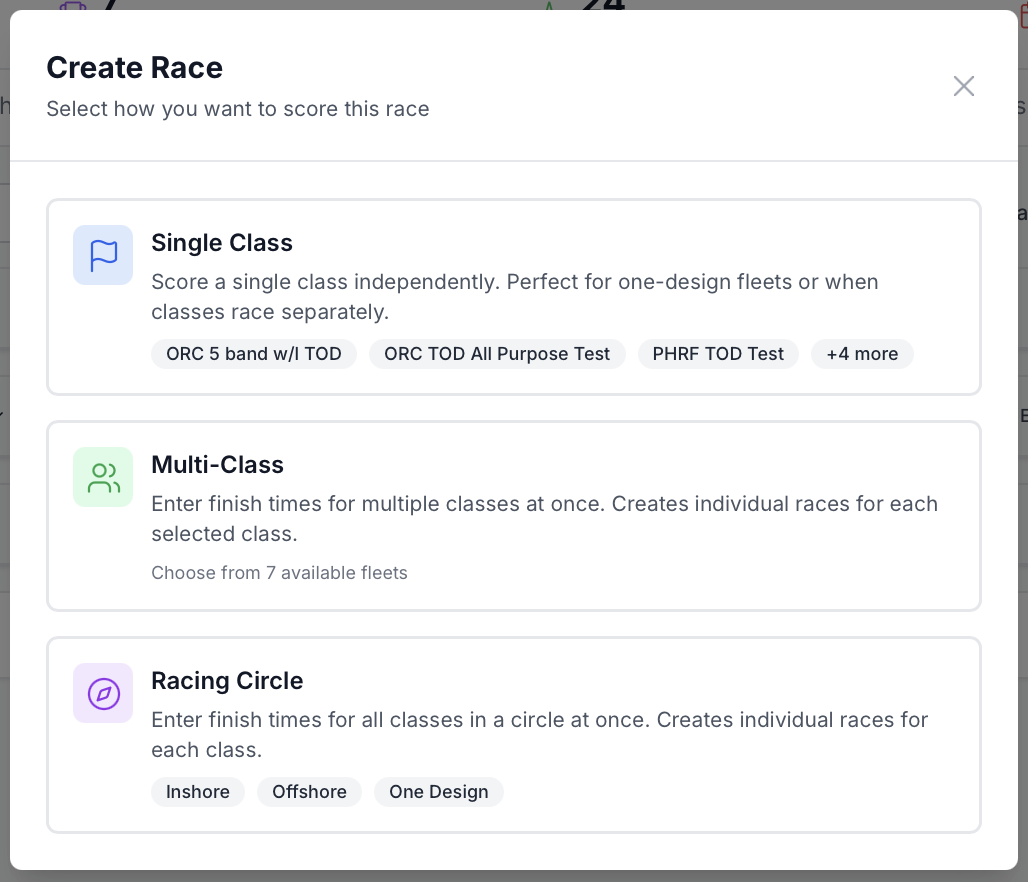
When you click "Add Race," RegattaHub first asks you to select a creation mode:
Mode 1: Single Class
Best for:
- Simplest to use
- Creating one race for one specific class
- When classes race at different times
- Maximum control over individual race settings
- One-design classes racing separately
Creates: 1 race for the selected fleet
Example: Creating "Race 1" for the J/70 fleet only
Mode 2: Multi-Class
Best for:
- Multiple classes finishing in mixed order
- When you want to enter finish times for multiple classes at once
- Classes that race the same course but score separately
Creates: Individual races for each selected fleet (all sharing entry workflow)
Multi-class mode creates separate individual races for each fleet. You get separate results for each class, but the data entry workflow allows you to enter finish times for all classes together.
Mode 3: Racing Circle
Best for:
- All classes in a circle racing together
Creates: Individual races for all fleets assigned to that circle
Example: Creating races for the "Offshore Circle" which contains PHRF Spinnaker, PHRF Non-Spinnaker, and ORC fleets
Racing Circle mode is only available if you've configured circles. If you don't see this option, you need to set up racing circles first.
Creating Your First Race - Single Class Mode
Let's walk through creating a race in Single Class mode, which gives you the most control and is the easiest to understand.
Step 1: Open the Race Creation Modal
- Click the Add Race button in the top right of the Races tab
- The race creation mode selection screen appears
Step 2: Select Single Class Mode
- Click the Single Class option
- You'll see a preview of available fleets below the option
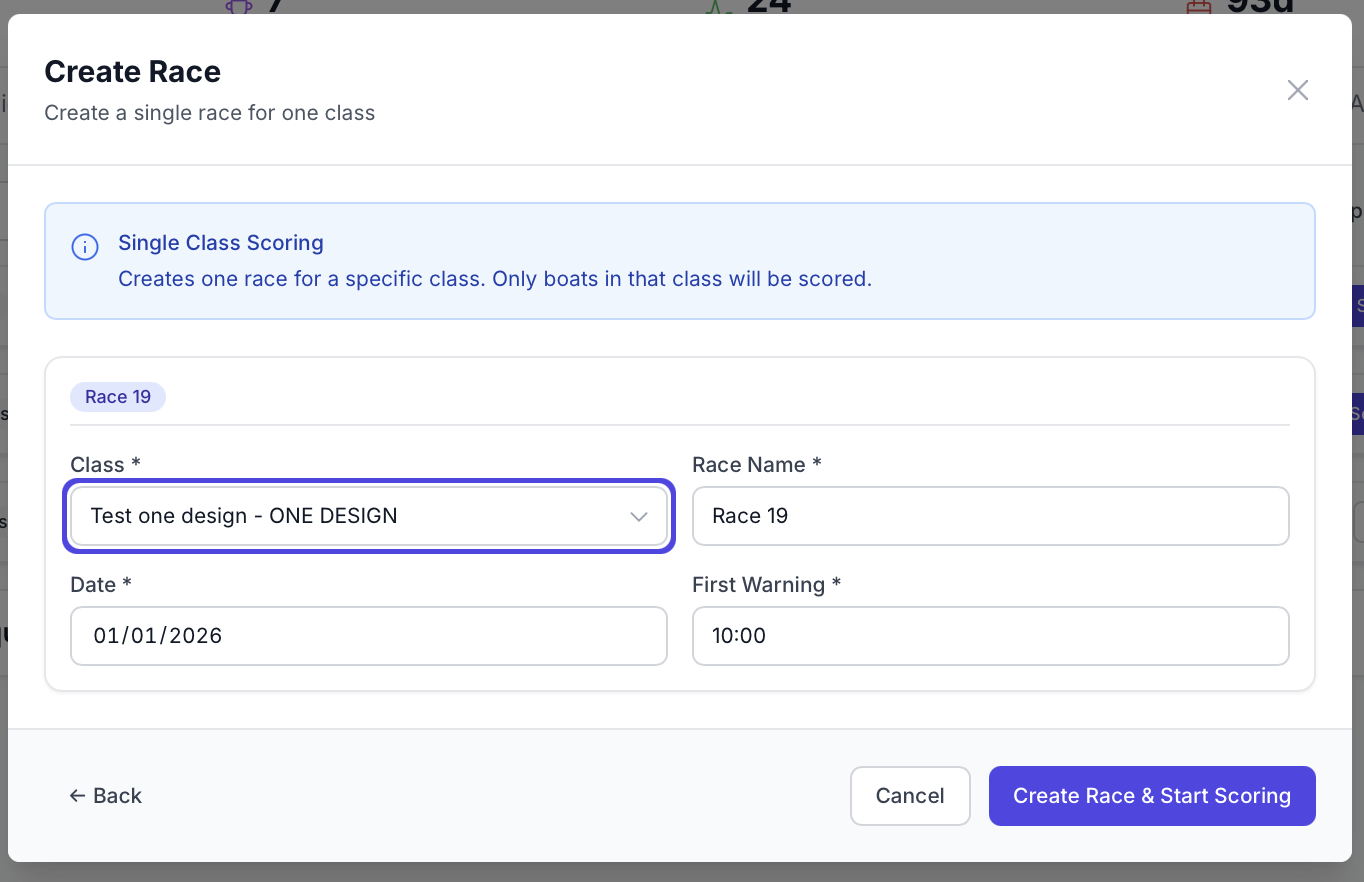
- The modal updates to show the race configuration form
Step 3: Configure Basic Race Information
The race configuration form has several sections. Start with the basics:
Fleet Selection - Selects which fleet this race is for
- Click the dropdown menu
- You'll see all configured fleets with their scoring types
- Select your desired fleet (e.g., "PHRF Spinnaker - PHRF")
The scoring type is shown next to each fleet name so you know what parameters you'll need to provide.
Race Name
What it does: Sets the display name for this race
Default: "Race 1" (or the next number in sequence of all fleets)
Race numbers on series standings are assigned by start time, race names are an additional option that appear on results sheets and in participant notifications.
Race Date
What it does: Sets the calendar date when the race occurs
Default: Your regatta start date
- Click the date picker
- Select the race date
- Date must be within your regatta date range
You can schedule races before or after your official regatta dates, but RegattaHub will show a warning if you do this.
Start time
What it does: Sets the scheduled start time for the race
Format: HH:MM or HH:MM:SS (24-hour format)
Configure Scoring Parameters
Depending on which fleet you selected, you may need to provide additional race parameters. These parameters determine how handicaps are calculated for this specific race.
For PHRF Fleets
PHRF races require course distance.
For ORC Single Number Fleets (ORC_SN)
ORC SN races require:
Field 1: "Course Distance (nm)"
Field 2: "Course Configuration"
Field 3: "TOD or TOT"
For ORC Triple Number Fleets (ORC_TRIPLE)
ORC Triple races require:
Field 1: "Course Distance (nm)"
Field 2: "Wind Band"
Field 3: "Course Configuration"
Field 4: "TOD or TOT"
For ORC 5-Band Fleets (ORC_5BAND)
ORC 5-Band races require:
Field 1: "Course Distance (nm)"
Field 2: "Wind Band (1-5)"
Field 3: "Course Configuration"
Field 4: "TOD or TOT"
For One Design Fleets
One Design races require no additional parameters! Only the basic information (name, date, time) is needed.
Step 6: Create Race and Start Scoring
When you click "Create Race & Start Scoring":
- RegattaHub creates the race in the database
- The race appears in your Races tab
- You're automatically redirected to the finish entry screen for that race
What's next? You're now on the finish entry screen where you'll eventually enter finish times. For now, you can navigate back to the Races tab to create more races.
Creating Races - Multi-Class Mode
Multi-Class mode creates individual races for multiple fleets simultaneously, with a combined data entry workflow. This is ideal when boats from different classes finish in mixed order.
When to Use Multi-Class Mode
Perfect for:
- Classes with staggered starts finishing together
- When you want to enter all finishes on one screen
Step 1: Select Multi-Class Mode
- Click Add Race
- Select Multi-Class option
- The interface updates to show fleet selection
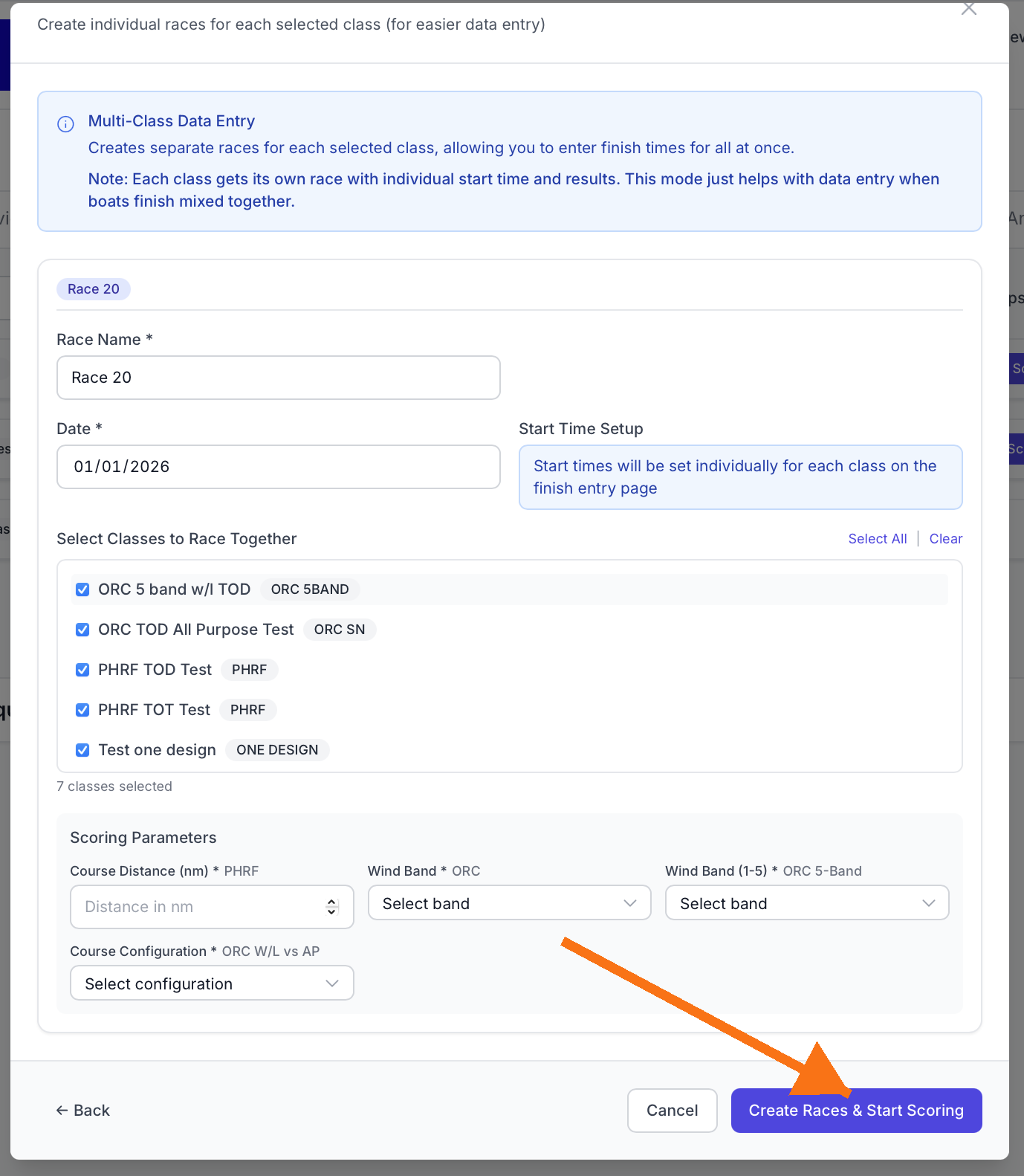
Step 2: Select Classes to Race Together
Unlike Single Class mode, Multi-Class lets you choose multiple fleets:
Fleet Selection Interface
You'll see a list of all configured fleets with checkboxes:
To select fleets:
1. Check the box next to each fleet that should race together
2. Use "Select All" to choose all fleets
3. Use "Clear" to uncheck all boxes
4. Selected count appears below the list
Step 3: Configure Multi-Class Race Details
Race Name
Field: "Race Name *"
Default: "Race 1" (or next number)
What happens: RegattaHub creates separate races with fleet names appended
Race Date
Field: "Date *"
Behavior: All created races use the same date
- Select the race date
- Must be within regatta date range
- All fleets will have races on this date
Start Time Setup
Important: Multi-Class mode handles start times differently:
Field Note: "Start times will be set individually for each class on the finish entry page"
Why? Multi-class races often have staggered starts (pursuit format), so start times are set per fleet during finish entry, not during race creation.
You'll set individual start times when you begin entering finish times.
Step 4: Configure Scoring Parameters
If any selected fleet requires scoring parameters, you'll see parameter fields.
Step 5: Create Multi-Class Races
Review your selections:
Review Checklist:
- All desired fleets selected
- Fleet selection makes sense for racing together
- Race name is appropriate (generic, no fleet names)
- Date is correct
- Scoring parameters filled in (if required)
What happens:
1. RegattaHub creates individual races for each selected fleet
2. Race numbers increment automatically (Race 1, Race 2, Race 3…)
3. All races share the same base name but have fleet names appended
4. You're redirected to a multi-class finish entry screen
After Creation: Multi-Class Entry
After creating multi-class races, you'll see a combined finish time entry screen. Additionally each race will show on the races tab under its specified fleet.
Entry Interface:
When you click "Score" on any of these races, you'll enter the standard finish entry screen where you can enter all finish times and details.
Managing Your Races
Once you've created races, you'll need to manage them: viewing, editing, deleting, and understanding their status.
Viewing Your Races
Race Status Indicators
Each race displays a colored status badge:
Draft (Gray badge)
- Race is created but not ready for scoring
- No finish times entered
- Not visible to participants
- Can be freely edited or deleted
Published (Green badge)
- Finish times have been entered
- Results are visible to participants
- Counts toward series standings
- Can still be edited (with caution)
In Progress (Yellow badge)
- Currently being scored
- Some finishes entered, not complete
- Results not yet final
Editing Draft Races
Draft races (no finishes entered) can be edited freely:
To edit:
1. Locate the race in the list
2. Click the Edit icon (pencil) next to the race
3. Edit modal appears with current values
4. Make changes
5. Click "Save Changes"
What you can edit:
- Race name
- Scheduled date and time
- Scoring parameters (distance, wind band, etc.)
- Circle assignment (if applicable)
Editing Published Races
Published races (with finishes entered) can be edited, but with warnings:
Warning message:
"This race has published results. Changing race parameters may affect calculated scores. Make sure you know what you're doing before saving changes."
What you can edit:
- Race name (safe)
- Scheduled date/time (safe)
- Scoring parameters (DANGER - recalculates all scores)
Best practice: If you need to change scoring parameters:
1. Note current results
2. Make the change
3. Verify recalculated results make sense
4. If results are wrong, change back immediately
What You Cannot Edit
Some race attributes cannot be changed after creation:
- Fleet assignment: Cannot move race to different fleet
- Scoring type: Cannot change PHRF to ORC, etc.
- Race number: Automatically assigned, cannot be changed
Why? These changes would invalidate finish times and results. If you need to make these changes, delete the race and create a new one.
Deleting Races
You can delete races that are no longer needed.
Deleting Draft Races
To delete:
1. Locate the race
2. Click the Delete icon (trash can)
3. Confirmation dialog appears
4. Click "Yes, Delete"
Warning message:
"Are you sure you want to delete 'Race 1 - PHRF Spinnaker'? This action cannot be undone."
What happens:
- Race is permanently removed
- Cannot be recovered
- Race number is not reassigned
Deleting Published Races
Deleting races with results requires extra caution:
Enhanced warning message:
"This race has published results. Deleting it will remove all finish times and scores. Series standings will be recalculated. This action cannot be undone. Are you sure?"
What happens:
- Race is permanently removed
- All finish times are deleted
- Series standings are automatically recalculated
- Participants will notice race is gone
When to delete published races:
- Race was run incorrectly and must be abandoned
- Duplicate race was created by mistake
- Regatta format changed after races were scored
Best Practice: Don't delete published races unless absolutely necessary. If a race was abandoned due to conditions, it's better to mark it as abandoned rather than delete it.
Changing Race Order
RegattaHub automatically assigns race numbers in creation order. You cannot manually reorder or renumber races.
Why? Race numbers are permanent identifiers used in:
- Finish time records
- Series standings calculations
- Published results
- Participant notifications
Workaround for display order:
- Use race names to indicate sequence (e.g., "Saturday Race 1", "Sunday Race 1")
- Races display in chronological order by scheduled start time
- Within same time, display by race number