
Publishing Results
You’ve entered race scores, and now it’s time to review, verify, and publish those results to competitors. This section covers the critical final steps of the scoring workflow: verifying accuracy, calculating series standings, understanding scoring groups, publishing results, and managing post-publication corrections.
Prerequisites
You should also have:
- Admin permissions
- Understanding of your fleet’s drop rules
- Knowledge of tie-breaking procedures
- Communication plan for result announcements
- mb-6
- Process for handling scoring inquiries
Once results are published, competitors can see them immediately. Always verify thoroughly before publishing!
Understanding Result Types
Overview
RegattaHub manages two distinct types of results, and understanding the difference is critical for effective results management.
Race Results
Race results show the outcome of a single race.
What They Include:
- Finishing order (positions)
- Finish times (if time-based scoring)
- Elapsed times
- Corrected times (for handicap races)
- Handicap ratings used
- Penalties applied
- Points awarded for that race
- Race status (DNS, DNF, DSQ, etc.)
Where to View:
- Race Finish Entry page (admin view)
- FleetRaceDetailsPage (detailed race view)
- Public regatta page → Results tab → Race Details
Key Characteristics:
- One race at a time
- Shows only that race’s data
- Can be published independently
- Edited through Race Finish Entry page
- Real-time scoring during race
Series Standings
Series standings show cumulative results across all races in a fleet.
What They Include:
- Overall position in series
- Points from each race
- Total points (sum of all races)
- Net points (after throwouts/drops)
- Number of races sailed
- Throwout indicators (which scores dropped)
- Tie-break explanations
- Podium indicators (medals for 1st, 2nd, 3rd)
Where to View:
- Public regatta page → Results tab → Fleet Standings
- A Fleet Results page (admin view). Accessed on the results tab by clicking on the eye icon or the fleet name
Fleet Series Standings:
Key Characteristics:
- Shows all races together
- Automatically recalculated when races published
- Applies drop rules (throwouts)
- Includes tie-breaking
- Updates in real-time
Important Points:
- Race results must be published first - Series standings only include published races
- Standings recalculate automatically - When you publish a race, standings update
- Drops apply based on race count - Throwouts activate after minimum races sailed
Accessing Results
Overview
There are multiple ways to access results in RegattaHub. Understanding all the entry points helps you navigate efficiently.
Method 1: Fleet Results Page (Primary)
This is the main page for viewing series standings and managing results for a specific fleet.
📍 Navigation: Admin Dashboard → Races Tab → View Results (Fleet Level)
Step-by-Step:
- From RegattaHub home, click Admin in top navigation
- Select your regatta from admin list
- Click the Races tab
- Expand a racing circle (e.g., “Offshore Circle”)
- Expand a fleet (e.g., “PHRF Spinnaker”)
- Click View Results or Results button at fleet level
What You See:
- Series standings table at the top
- Individual race cards below
- Calculate Standings button
- Add Race button
- Race statistics for each race
When to use:
- Reviewing overall fleet performance
- Checking series standings
- Verifying drop rules are working
- Managing all races for one fleet
- Race day management
Method 2: Individual Race Results
View results for a single race through the Race Finish Entry page.
📍 Navigation: Admin Dashboard → Races Tab → Individual Fleet
Step-by-Step:
- Navigate to Races tab (as above)
- Expand racing circle and fleet
- Find the fleet
- Click fleet name
What You See:
- Results table with all boats
- Race by race section
Method 3: Public Results View (Competitor Perspective)
See results exactly as competitors see them.
📍 Navigation: Admin Dashboard → View Public Button → Results Tab
Step-by-Step:
- From admin dashboard, click View Public in header
- Click Results tab
- Expand fleet to see series standings
- Click Race Details to see individual races
What You See:
- Public-facing results page
- No admin controls visible
- Same view competitors get
- Series standings and race details
- No draft races shown
When to use:
- Verifying what competitors see
- Testing before announcing results
- Checking mobile display
- Confirming published status
Calculating Series Standings
Overview
Series standings show cumulative results across multiple races in a fleet. RegattaHub automatically calculates standings, but understanding how they work helps you verify accuracy and explain results to competitors.
How Series Standings Work
Series standings aggregate individual race results into overall rankings as soon as a race is published:
Race 1 Points + Race 2 Points + Race 3 Points = Total Points
Total Points - Dropped Race(s) = Net Points
Boats ranked by Net Points (lowest wins)
Understanding the Standings Table
The series standings table shows these key columns:
Fixed Columns:
- Pos - Overall position (1st, 2nd, 3rd, etc.)
- Sail # - Boat’s sail number
- Boat Name - Registered boat name
- Skipper - Skipper’s name
- Boat Type - Make/model of boat
- Rating - Handicap rating (if not One Design)
Race Columns:
- R1, R2, R3… - Points from each race
- Strikethrough indicates dropped score
- Penalty codes shown next to points (DNS, DNF, etc.)
- Hover for race details
Summary Columns:
- Total - Sum of all race points
- Net - Total minus dropped scores (this determines ranking)
Understanding Throwouts (Drops)
Throwouts (also called “drops” or “discards”) allow sailors to drop their worst race(s) from series scoring.
Drop System Configuration
RegattaHub supports a flexible drop system configured per fleet:
Minimum Races System:
dropMinRaces = 3    // Must complete 3 races before drops apply
dropPerRaces = 3    // Then 1 drop per 3 additional races
How Drops Are Applied
RegattaHub automatically drops worst scores:
- Ranks all race scores for each boat (highest points = worst)
- Applies drop count based on total races completed
- Excludes worst scores from Net Points calculation
- Marks dropped scores with strikethrough in table
- Respects non-excludable penalties (DNE)
Non-Excludable Penalties
Some penalties cannot be dropped :
- mb-6
- DNE - Disqualification (not excludable)
These penalties always count in Net Points, even if they’re the worst score.
Understanding Tie-Breaking
When boats have identical Net Points, RegattaHub applies these tie-breaking rules:
Most Betters (Primary Tie-Breaker)
Compare the number of 1st places, then 2nd places, then 3rd places, etc., using ALL races including discarded.
Last Race (Secondary Tie-Breaker)
If still tied after A8.1, best score in last race wins. If still tied, compare second-to-last, etc.
Standings Update Timing
Series standings update automatically in these situations:
Real-Time Updates:
- When you publish a race (immediate recalculation)
- When you update published race (immediate recalculation)
- When another admin publishes race (via real-time subscription)
Standings Display Features
The standings table includes helpful features:
Medal Icons:
- 🥇 1st place
- 🥈 2nd place
- 🥉 3rd place
Hover Tooltips:
- Hover over race points to see details
- Position, times, rating used
- Whether score is dropped
- Penalty explanation if applicable
Help Icon:
- Appears next to position when tie-break applied
- Hover to see tie-break explanation
- Shows which rule was used
Color Coding:
- Strikethrough for dropped scores
- Red/bold for non-excludable penalties
- Highlighted row for current user’s boat (on public view)
Understanding Scoring Groups
Overview
Scoring groups allow you to subdivide a single fleet into multiple competitive divisions while racing together. This is useful for creating fair competition within fleets that have diverse boat types or skipper categories.
Common Use Cases:
- Corinthian
- Age divisions (Youth, Adult, Senior)
- Mixed plus
What Are Scoring Groups?
Scoring groups create separate standings within a fleet:
```
Key Points:
- All boats race together
- Same start time
- Same course
- Same scoring system
- But separate standings per group
How Scoring Groups Work
Race Level
During racing:
- All boats in fleet race together
- Single race, single start
- Finish times recorded normally
- Points assigned based on fleet finish
Series Standings Level
For series standings:
- Fleet standings show all boats together
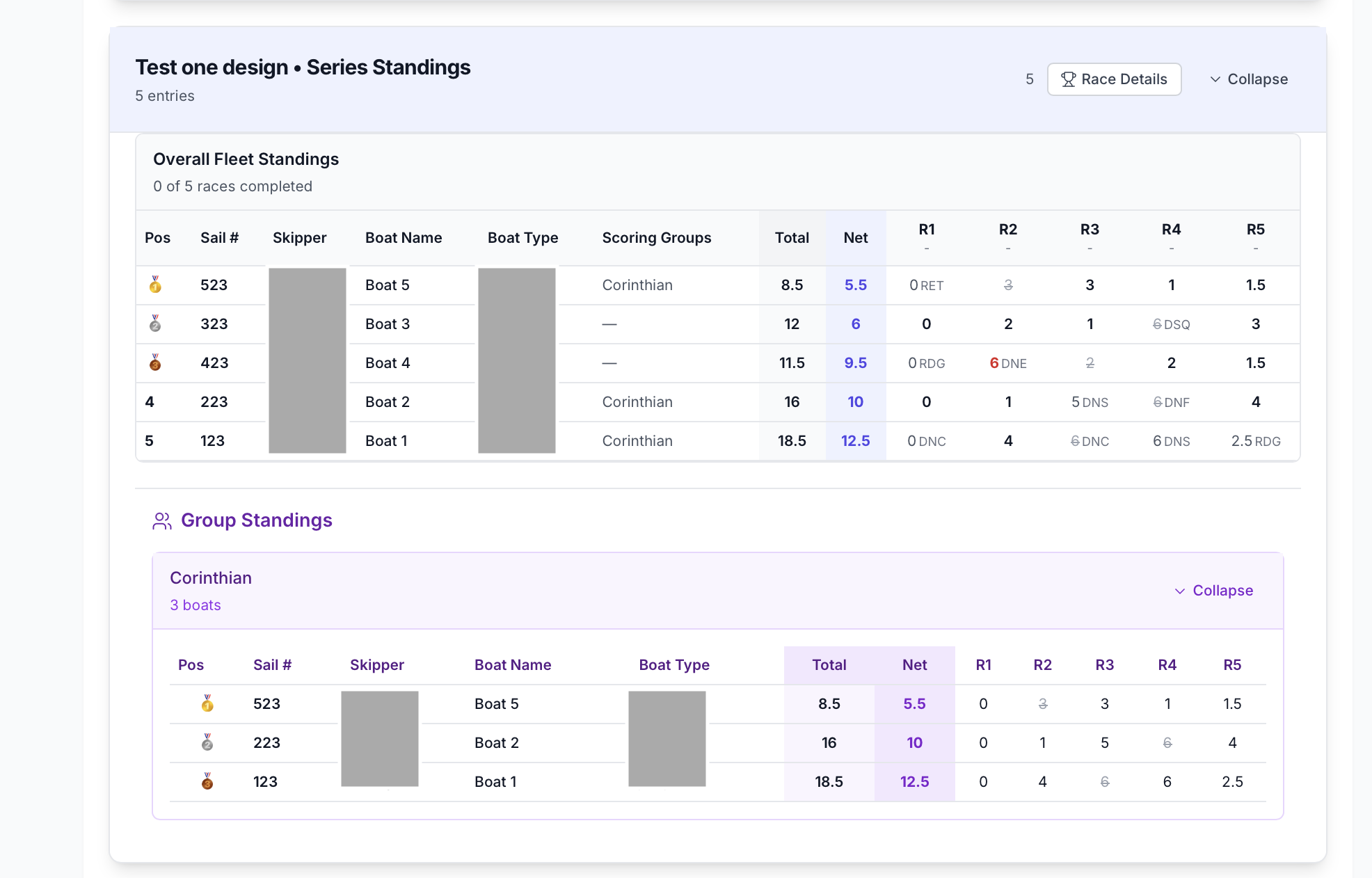
- Group standings show subdivisions
- Each group has independent positions
- Same race points, different rankings
Setting Up Scoring Groups
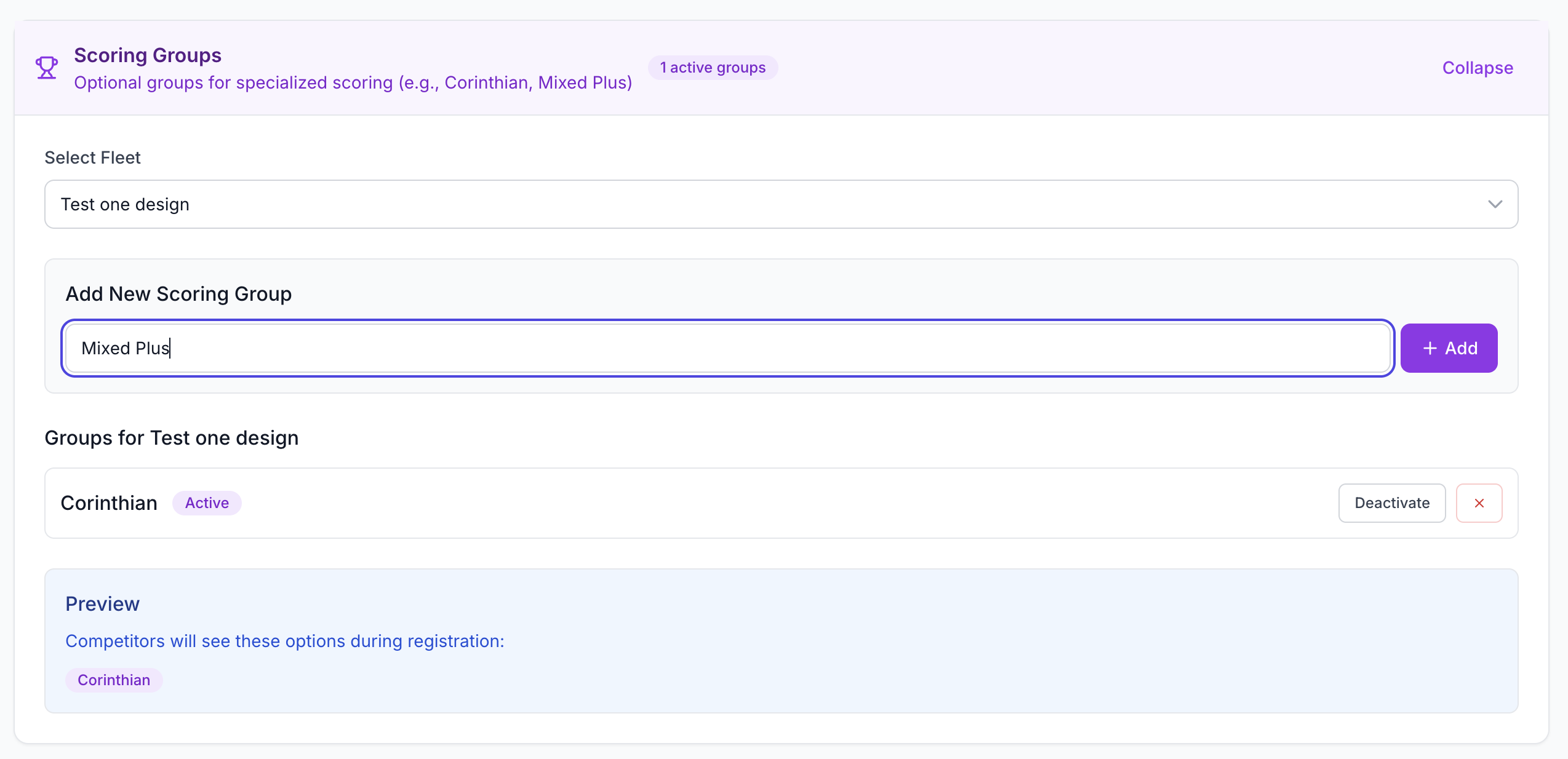
Scoring groups are configured in the Classes tab (Section 3), but here’s how they affect results:
Configuration (from Section 3):
1. Create scoring groups for a fleet
2. Assign boats to groups during registration
3. Groups appear automatically in results
Results Display:
- Fleet standings show all boats
- Group standings section appears below
- Each group expandable/collapsible
- Same columns as fleet standings
Viewing Group Standings
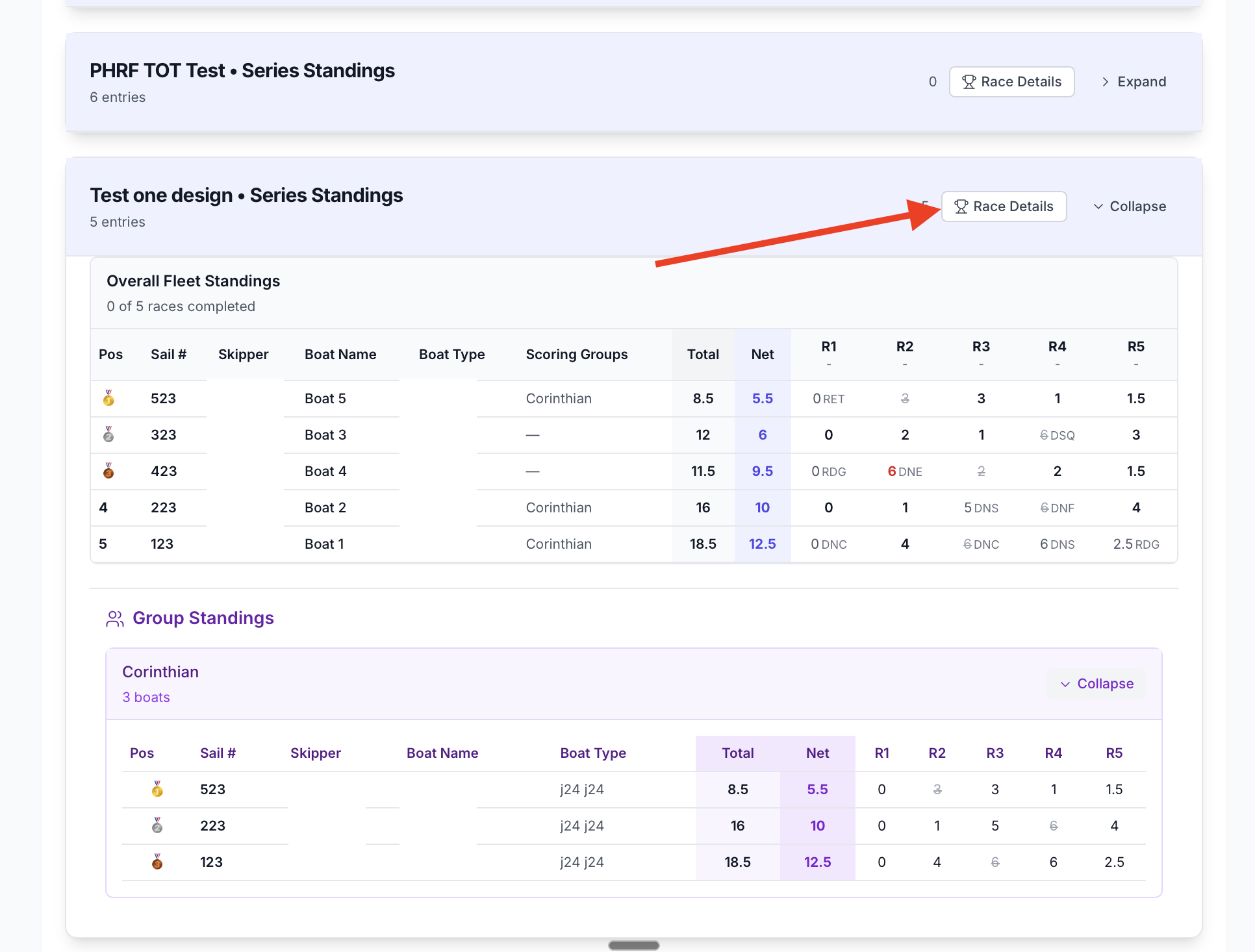
Group standings appear on the Fleet Results page.
📍 Navigation: Fleet Results Page → Scroll to Scoring Groups Section
What You See:
- “Group Standings” card
- One section per group
- Group name and description
- Number of boats in each group
- Expand/collapse buttons
- Complete standings table per group
Group Standings Features
Expand/Collapse Control
Each group can be expanded or collapsed independently:
- Click chevron to expand group
- Shows full standings table
- Click again to collapse
- Useful for focusing on specific groups
Group Standings Table
Each group table shows:
- Position within group (1, 2, 3…)
- Same columns as fleet standings
- Race-by-race points
- Total and Net points
- Medals for top 3 in group
- Drop indicators
Important: Points are from fleet finish, but positions are within group.
Managing Group Assignments
Boats are assigned to groups during registration, but you can verify:
Check Group Assignments:
1. Go to Entries tab
2. View registration list
3. Check “Scoring Group” column
4. Verify each boat in correct group
If Group Wrong:
1. Edit registration
2. Change scoring group assignment
3. Save changes
4. Recalculate standings
