Entering Scores/Finish Times
Entering race scores is the core function that race committees perform during and after racing. Whether you’re recording finish times on the water, entering positions back at the club, or applying penalties from protest hearings, this guide covers everything you need to know.
Prerequisites
You should also have:
- Admin permissions for the regatta
- Understanding of sailing penalty codes (covered in detail here)
- Knowledge of your fleet’s scoring system (PHRF, ORC, or One Design)
- A plan for recording finish times (paper backup, stopwatch, etc.)
- mb-6
- Race parameters ready (course distance, wind conditions)
Accessing Race Scoring
There are multiple ways to access the race scoring interface in RegattaHub. Understanding all the entry points helps you navigate efficiently, especially during busy race days.
Method 1: From the Races Tab (Recommended)
This is the primary method for accessing race scoring and the one you’ll use most often.
📍 Navigation: Admin Dashboard → Races Tab → Score Button
Step-by-Step:
- From the RegattaHub home page, click Admin in the top navigation
- Select your regatta from the admin list
- Click the Races tab in the dashboard
- Locate the race you want to score:
- Expand the racing circle (e.g., “Offshore Circle”)
- Expand the fleet/class (e.g., “PHRF Spinnaker”)
- mb-6
- Find the specific race (e.g., “Race 1 - PHRF Spinnaker”)
- Click the Score button next to the race name
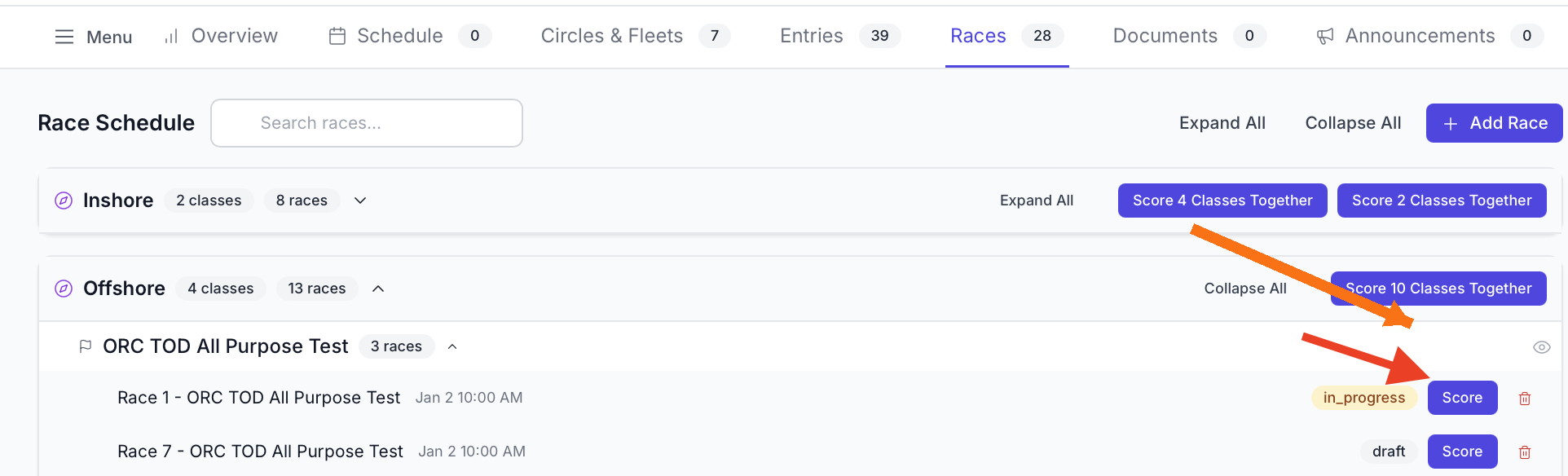
You’ll be taken directly to the Race Finish Entry page for that race.
When to use this method:
- Standard race day scoring
- When you know which race you want to score
- When scoring races one at a time
- During or immediately after each raceRace Scoring Interface Overview
First Look at the Scoring Page
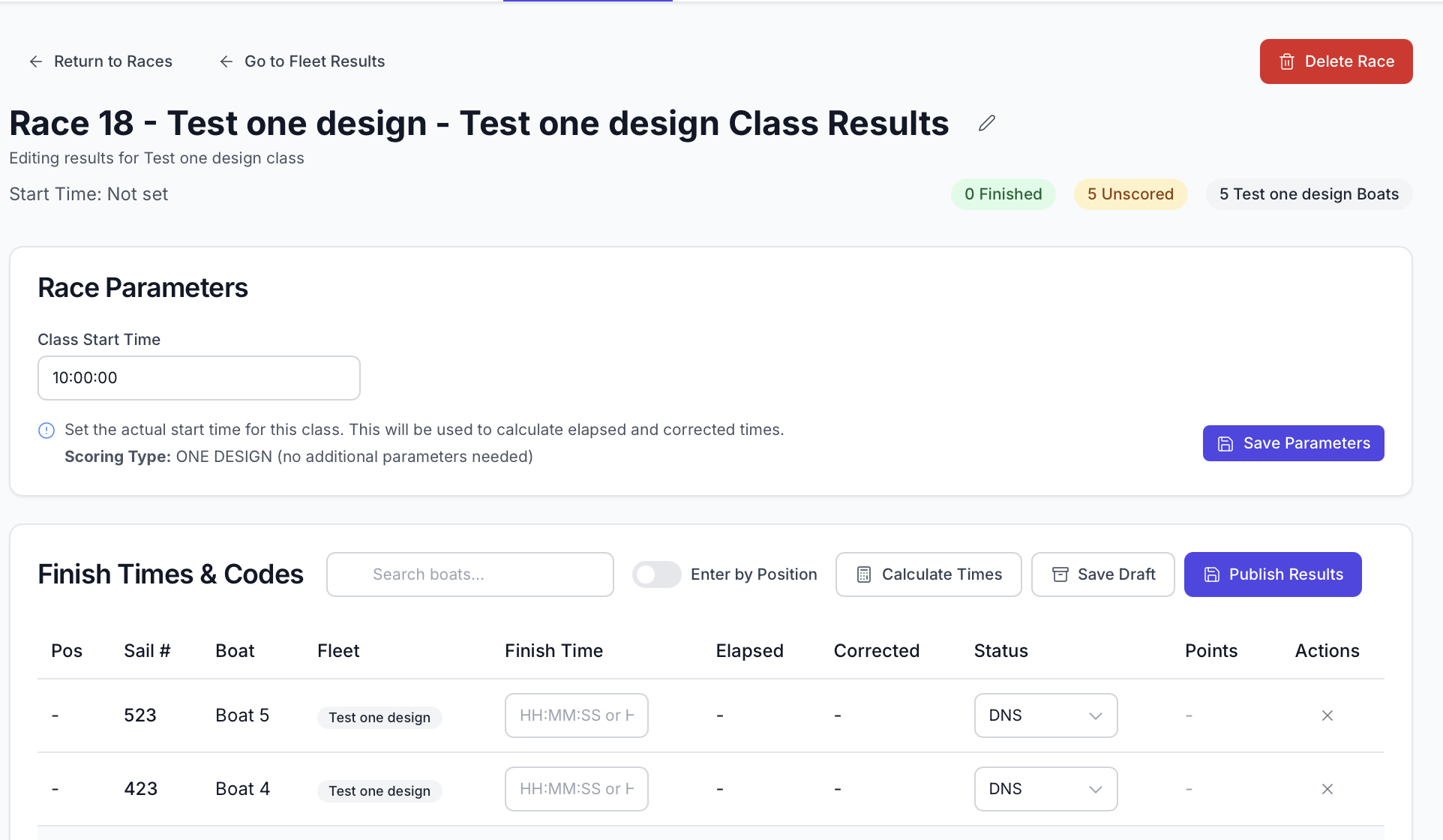
When you first open the race scoring interface, you’re greeted with a comprehensive page containing everything you need to enter and calculate race results.
Let’s break down each section and understand what it does.
Page Header Section
At the very top of the page, you’ll find navigation and context information.
Elements:
Back to Races Button (top left)
- Returns you to the Races tab overview
- Use this when you’re done scoring or need to switch racesRace Title (centered)
- Shows the race name and fleet
- Format: “Race [Number] - [Fleet Name]”
- Example: “Race 1 - PHRF Spinnaker”
- Editable (click the pencil icon to rename)Status Indicator (badge)
- Shows current race status: Draft, Published
- Color-coded: gray (draft), green (published),
- Helps you track which races have been completedEdit Race Name (pencil icon)
- Click to edit the race name
- Useful if you need to rename for clarity
- Example: Change “Race 1” to “Race 1 - Windward/Leeward”Race Summary Bar
Just below the header, you’ll see a summary of the race’s current state.
Summary Information:
Finished Count (green badge)
- Number of boats with finish times entered
- Example: “5 Finished” means 5 boats have recorded finish times
- This number increases as you enter finishesUnscored Count (yellow/orange badge)
- Number of boats without finish times or penalties
- Example: “8 Unscored” means 8 boats still need data entry
- This number decreases as you work
- Goal: Get this to zero before publishingTotal Boats (gray badge)
- Total number of registered boats in this fleet
- Based on approved entries
- Should equal Finished + UnscoredStatus Message
- “Editing Race Results” (when status is draft/in progress)
- “Published Results” (when status is published)
- Provides context for what you’re doingNote:Quick Check: The summary bar is your at-a-glance progress indicator. Before publishing, verify that Unscored = 0 and Finished equals the number of boats that actually raced (accounting for DNS/DNF penalties).
Race Parameters Section
This critical section contains all the race-specific conditions needed for accurate scoring calculations.
The parameters section is divided into two columns:
Left Column: Input Fields
- Class Start Time
- Distance (nm) - for PHRF/ORC
- Course Type - for ORC
- Course Config - for ORC- Wind Band - for ORC
- Scoring Method - for PHRF & ORC (TOD/TOT)Key Features:
Start Time Field (Always Required)
Distance Field (PHRF and ORC races)
Scoring Method (PHRF only)
Course Type (ORC PCS only)
Course Config (ORC Simple Number)
Wind Band (ORC Triple Number)
Wind Band 5 (ORC 5-Band)Save Button and Status
- Click Save Parameters to save settings
- Status shows: “Unsaved Changes” or “✓ Saved”
- Green checkmark appears when saved successfully
- Must save before calculating resultsParameter Requirements by Scoring Type
Different scoring types require different parameters:
Scoring Type Start Time Distance Scoring Method Wind Band Course Type/Config One Design ✓ Required - - - - PHRF TOD ✓ Required ✓ Required ✓ Required (TOD) - - PHRF TOT ✓ Required ✓ Required ✓ Required (TOT) - - ORC Simple ✓ Required ✓ Required ✓ Required - ✓ Required ORC Triple ✓ Required ✓ Required ✓ Required ✓ Required ✓ Required ORC 5-Band ✓ Required ✓ Required ✓ Required ✓ Required (5-band) ✓ Required
Critical: You CANNOT calculate results until all required parameters are set and saved. The Calculate button will be disabled or produce errors if parameters are missing.
Finish Times & Codes Table
This is the main working area where you’ll spend most of your time during race scoring. It’s a comprehensive table showing all boats and their race data.
Table Toolbar
At the top of the table, you’ll find several important tools:
Search Box (left side)
- Search by sail number, boat name, or skipper name
- Filters table in real-time as you type
- Clear search to show all boats again
Refresh Ratings Button (if handicap fleet)
- Reloads boat ratings from the database
- Use when ratings were recently updated
- Helpful if boats have entered ratings after race creation
Calculate Times Button (center)
- Computes elapsed times, corrected times, positions, and points
- Must be clicked after entering finish times
Save Draft Button (right side)
- Saves current work without publishing
- Results remain private (not visible to competitors)
- Can continue editing later
Publish Results Button (right side)
- Makes results public and visible to competitors
- Only available after calculating times
- Changes to “Update Published Results” after first publish
Table Columns Explained
The table displays up to 11 columns, depending on the scoring type. Here’s what each one shows:
Informational
- Position: Shows finishing position after entering a time
- Sail #: Unique identifier for each boat
- Boat Name: Boat’s registered name
- Fleet: Shows which fleet/class the boat belongs to
- Rating: Shows the boat’s handicap rating used for scoring. Visible for phrf and orc fleets only
- Finish Time (time entry mode)
Editable
- mb-6
- Finish time: Record the actual clock time when boat crossed finish line
- Format: HH:MM:SS (24-hour time)
- Yes - this is where you enter finish times
- mb-6
- Position (position entry mode)
- Purpose: Record finishing order using positions (One Design only)
- Format: Integer (1, 2, 3, 4, …)
- mb-6
- Entry method: Type position number directly
- mb-6
- Elapsed Time: Shows time from start to finish
- Format: H:MM:SS or HH:MM:SS
- Calculation: Finish Time - Start Time
- When it appears: After clicking Calculate Times
- Editable: No (calculated automatically)
- mb-6
- Corrected Time: Shows time after applying handicap rating
- Format: H:MM:SS or HH:MM:SS
- Calculation: System applies rating formula based on scoring type
- When it appears: After clicking Calculate Times (handicap fleets only)
- Visible: PHRF and ORC fleets only (hidden for One Design)
- mb-6
- Finish Status: Track whether boat finished normally or received a penalty
- mb-6
- Format: Dropdown menu
- mb-6
- Points: Shows points awarded for this race
- When it appears: After clicking Calculate Times
- Editable: No (calculated automatically)
- mb-6
- Actions: Clear button (X icon) - Removes finish time/position entry