
Managing Protests
This guide covers both perspectives: what competitors experience when filing protests, and how administrators manage the protest process from submission through final decision. U
Part A: For Competitors - Understanding the Submission Process
Access Point: Public Results Page
Navigation Path:
1. Go to regatta public page
2. Select “Submit” tab
3. Locate “File a Protest” button (typically red, prominent placement)
Login Requirement
Authentication Process:
- Click “File a Protest” triggers login prompt
- Must have competitor account
- Email verification required
Form Walkthrough
Protest Submission Modal:
The protest form opens as a modal overlay with clear sections:
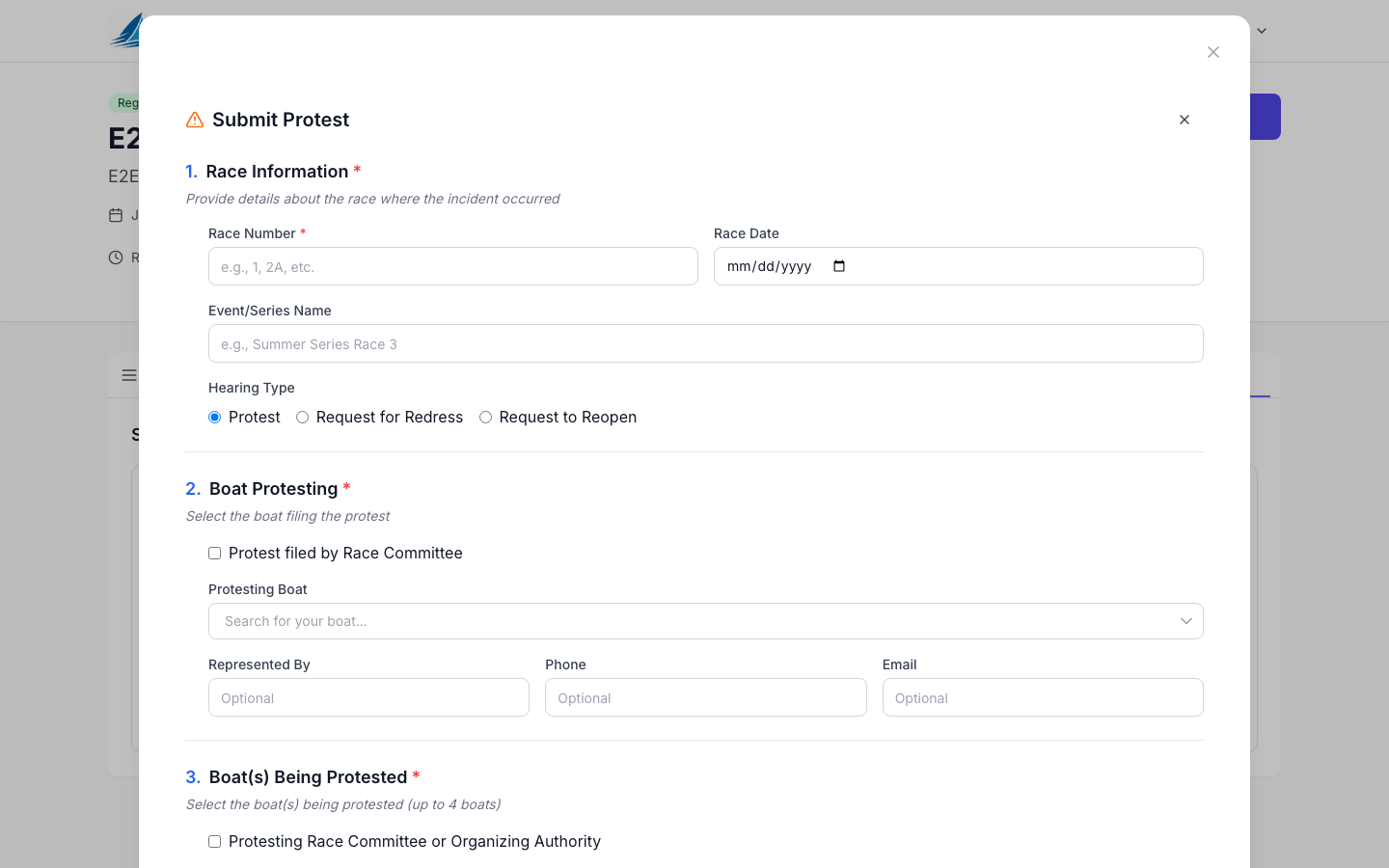
1. Race Information:
- Race Number (required)
- Race Date (optional)
- Event/Series Name (optional)
- Hearing Type: Protest / Request for Redress / Request to Reopen
2. Boat Protesting:
- Select the boat filing the protest
- Dropdown shows your registered boats (sail number and boat name)
3. Boat(s) Being Protested:
- Searchable dropdown of all entries
- Add up to 4 boats
- Type sail number or boat name to filter
- Shows class/fleet for clarity
4. Incident Details:
- Provide details about what happened, when/where it occurred, and any rules alleged to have been broken
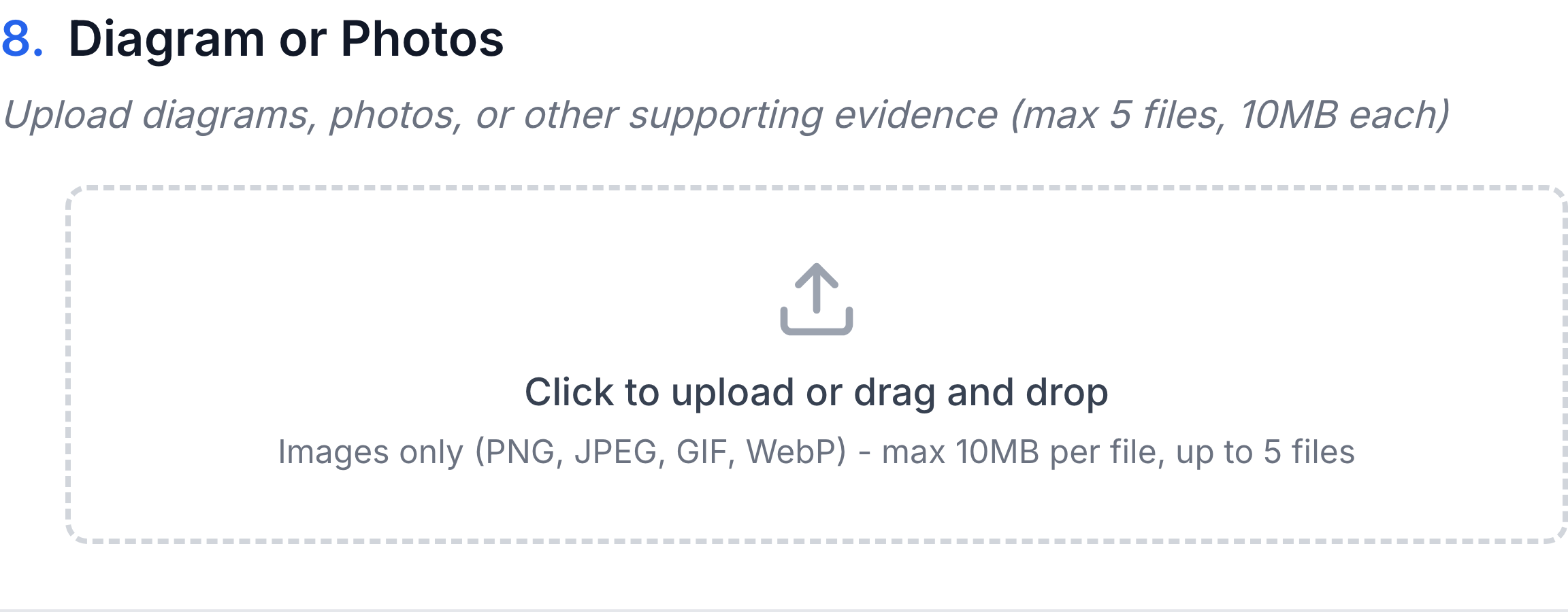
5. Diagram or Photos (Optional):
- Upload supporting evidence (up to 5 files, 10MB each)
Submission Confirmation
Upon Clicking Submit:
- Confirmation Modal:
- “Protest Successfully Filed”
- Assigned protest number (e.g., “Protest #2024-05”)
- Time stamp of submission
No Ability to Edit After Filing
Important Limitations:
- Once submitted, protests cannot be edited by competitors
- No withdrawal through system (must be done at hearing)
- Cannot add additional information online
- Changes require communication with protest committeeIf Mistakes Made:
- Contact protest committee immediately
- Bring corrections to hearing
- File additional protest if necessary
- Document communication attemptsAfter Submission - What Competitors See
Confirmation Message
Immediate Display:
Protest submitted successfully! It will be reviewed by race officials.Public Visibility on Notice Board
What’s Posted Publicly:
- Protest number
- Boats involved
- Hearing schedule
- Decision summary
- Penalties appliedPart B: For Administrators - Managing Protests
Required Roles and Permissions
Who Can Manage Protests:
- Regatta Admin: Full access to all protest functions
- Protest Committee: Access to manage protests and record outcomes
1. Pending Status (Initial State):
- Newly filed protests
- Awaiting validity check
- Not visible on notice board
2. Accepted Status:
- Visible on notice board
3. Scheduled Status:
- Hearing time/place set
- Formal notices sent
- On hearing docket
- Preparation period
4. Decided Status:
- Hearing completed
- Findings of fact established
- Decision rendered
- Penalties applied
Alternative Paths:
Invalid:
- Filed after time limit
- Lacks required information
- No valid grounds
- Improper party
Withdrawn:
- Protestor withdraws
- Acknowledged rule breach
- Settled between parties
- No longer pursuing
Accessing the Admin Interface
Primary Navigation Path
Step-by-Step Access:
- Login as Administrator:
- Navigate to regatta homepage
- Click “Admin Dashboard” in navigation
- Authenticate with admin credentials
- Navigate to Notice Board:
- Select “Protests” Tab:
- Within Settings page
- Click “Communications” tab
- Page shows Inquiries and Protests sections
Navigation Format:
Admin Dashboard → Notice Board Tab → ProtestsUnderstanding the Protest Table
Table Columns
The protest table displays comprehensive information in organized columns:
1. Protest # Column:
2. Race Number Column:
3. Protesting Boat Column:
4. Protested Boat Column:
5. Status Badge Column:
- Color-coded badges:
- Pending (gray): New/unreviewed
- Accepted (yellow): Valid, awaiting hearing
- Scheduled (blue): Hearing time set
- Decided (green): Complete
- Invalid (red): Rejected
- Withdrawn (orange): Cancelled6. Submitted By Column:
7. Submission Timestamp Column:
8. Action Buttons Column:
- Quick Approve (✓): Accept as valid
- Edit (pencil): Open edit modal
- Delete (trash): Remove protestApproving Protests (Pending → Accepted)
Quick Approve Button
Button Location and Appearance:
- Green checkmark icon (✓)
- In action column of table
- Tooltip: “Accept as Valid”
- Only visible for pending protestsOne-Click Approval Process:
- Click Green Checkmark
- Confirmation Dialog:
Accept Protest #2024-05 as Valid?
This will:
- Change status to Accepted
- Post to notice board
[Cancel] [Accept Protest]
Edit Protest to Add Hearing Details
Opening the Edit Modal:
- Click Edit Button:
- Pencil icon in actions column
- Or click protest number link
- Opens full edit modal
- Navigate to Hearing Section:
- Scroll to “Hearing Details” section
- Expands automatically for accepted protests
- Required fields marked with asterisk
Setting Date/Time/Location
Hearing Details Fields:
Date Selection:
Time Selection:Decision update
- Save Decision in System:
- Click “Save and Publish”
- Confirms all fields complete
- Validates penalty if applied
- Updates status to “Decided”
- Click Edit Button: