
Managing Scoring Inquiries
Scoring inquiries are a critical communication channel between competitors and race officials during regattas. This guide covers both perspectives: what competitors experience when submitting inquiries, and how administrators manage and resolve them. Understanding both sides helps administrators provide better service and resolve issues more effectively.
The scoring inquiry system in RegattaHub provides a structured, trackable way for competitors to report potential scoring errors.
Part A: For Competitors - Understanding the Submission Process
When Competitors Submit Inquiries
How Competitors Submit Inquiries
Accessing the Submission Form
Step 1: Navigate to Results
Competitors must:
1. Go to the regatta’s public page
2. Click on the “Results” tab
3. Ensure they are logged into their RegattaHub account
4. Locate the “Scoring Inquiry” button
The Scoring Inquiry button appears:
- In the upper-right area of the Results page
- Near the “Series Results” heading
- With a question mark icon
- Only when logged in

Completing the Inquiry Form
Step 3: Open the Form
Clicking “Scoring Inquiry” opens a modal form overlaying the page.
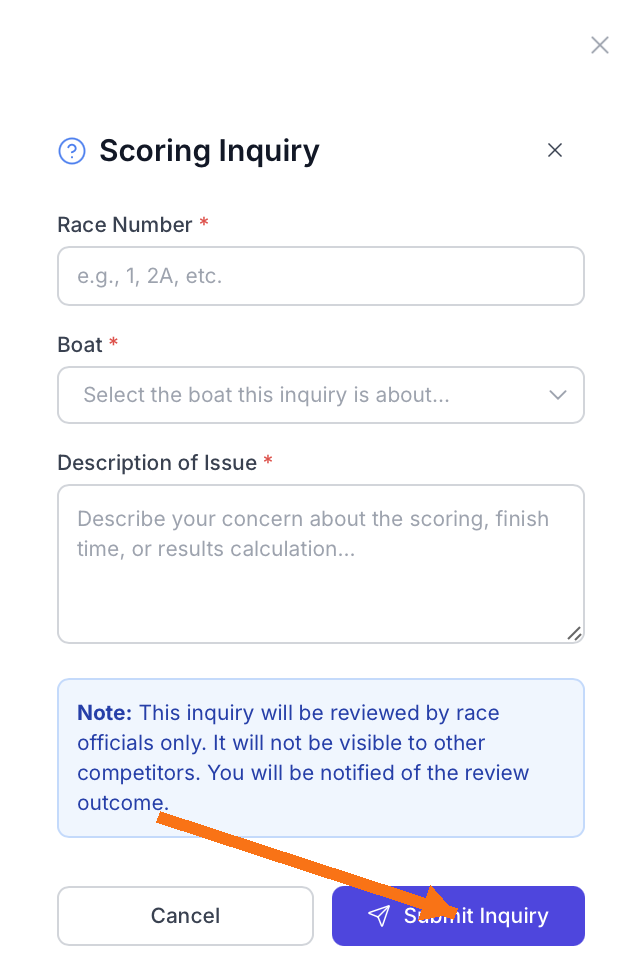
Step 4: Enter Race Number
Step 5: Select Your Boat
The boat selection dropdown:
- Shows all boats entered in the regatta
- Displays sail number and boat name
- Requires selection from list (no free text)
Step 6: Describe the Issue
The description field is critical for resolution. Competitors should provide:
Step 7: Review Privacy Notice
Before submission, the form displays:
This inquiry will be reviewed by race officials only. It will not be visible to other competitors. You will be notified of the review outcome.
Step 8: Submit the Inquiry
Click “Submit Inquiry” button to send. The system:
- Validates all required fields
- Saves the inquiry to database
- Timestamps the submission
- Assigns pending status
- Triggers admin notification
What Competitors See After Submission
Immediate Confirmation
Upon successful submission:
Competitors see:
- Green success toast notification
- Message: “Scoring inquiry submitted successfully! It will be reviewed by race officials.”
- Form closes automatically
- Return to Results page
Tracking Status
Currently, RegattaHub doesn’t provide:
- Inquiry status page for competitors
- Submission history view
- Direct status updates in account
- Ability to edit after submission
Competitors must:
- Watch for email notifications
- Check results for corrections
- Monitor in-app notifications
- Contact race committee if urgent
Part B: For Admins - Managing Scoring Inquiries
Prerequisites for Admin Access
Before managing scoring inquiries, ensure you have:
Required Permissions
User Role Requirements:
- Admin role for the regatta
Accessing the Admin Interface
Primary Navigation Path
Step 1: Access Admin Regatta page
Step 2: Navigate to Results
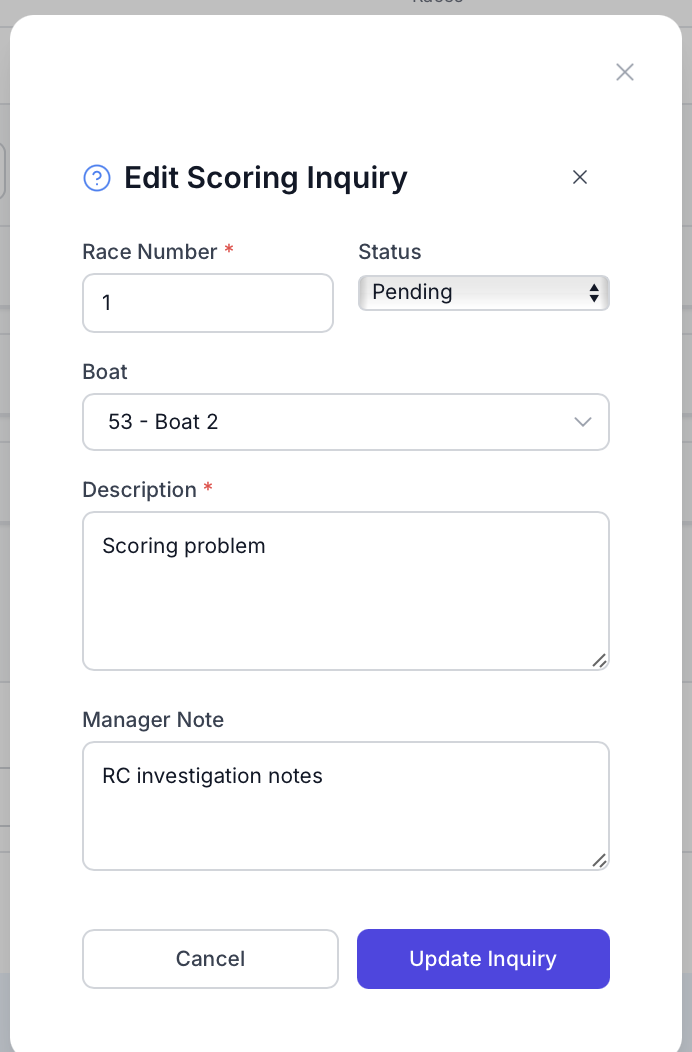
Step 3: Open Scoring Inquiry Section

Expanding the Section
Click anywhere on the header to expand:
- Content area opens
- Inquiries list loads
- Search bar becomes available
Understanding the Inquiry List Interface
Card-Based Layout
Each inquiry appears as a card rather than table row, providing:
Information Displayed Per Inquiry
Header Section:
- Race Number
- Boat Identification: Sail number and boat name in parentheses
- Status Badge: Color-coded status indicator
Content Section:
- Description: Full text of competitor’s submission
- Manager Note: Blue background box if notes added
- Metadata: Submitter name, submission timestamp
Footer Information:
- Submitter: “By [Name]”
- Submitted: Date and time
- Resolved: Date and time (if applicable)
- Formatted as: “MMM D, YYYY H:MM AM/PM”
Responding to Inquiries - Three Methods
Method 1: Quick Resolve
For straightforward resolutions:
Process:
1. Click green checkmark button
2. Prompt appears for resolution note
3. Enter brief explanation
4. Click OK to resolve
5. Status changes to “Resolved”
When to Use:
- Simple corrections made
- No changes needed (with explanation)
- Clear-cut decisions
- Brief notes sufficient
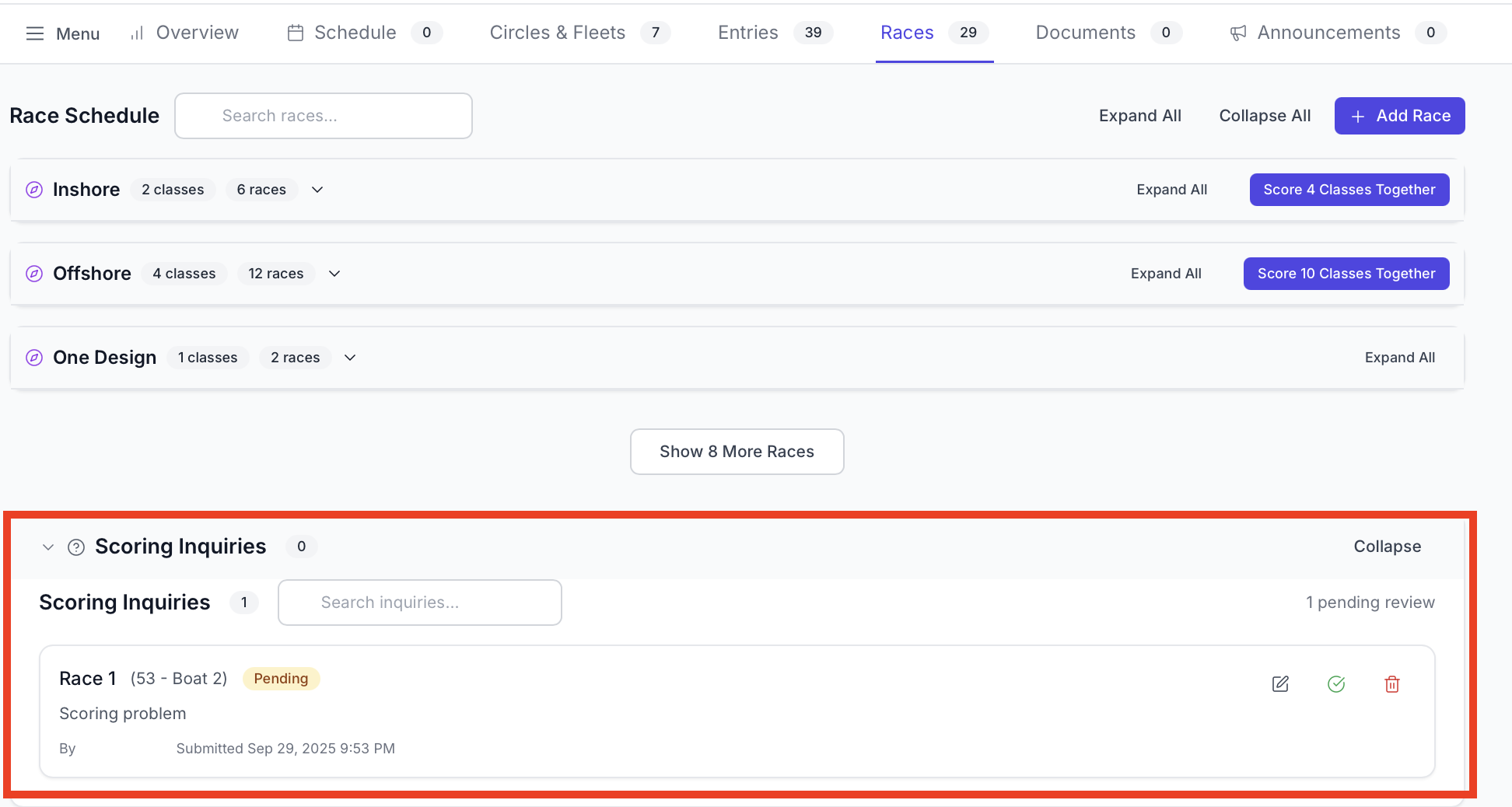
Method 2: Edit & Respond
For complex situations requiring detailed documentation:
Process:
1. Click Edit button (pencil icon)
2. Modal opens with all fields
3. Review and modify as needed
4. Add comprehensive manager note
5. Save changes
Method 3: Delete Inquiry
For invalid or duplicate submissions:
Process:
1. Click red trash button
2. Confirmation prompt appears
3. Confirm deletion
4. Inquiry permanently removed
Caution: Deletion is permanent. Consider resolving with explanation instead for audit trail.
Edit Modal Detailed Functionality
Understanding Modal Interface
The edit modal provides comprehensive control:
Status Dropdown Options:
- mb-6
- Pending: New, needs review
- mb-6
- Reviewed: Investigated, decision pending
- mb-6
- Resolved: Decision made, action complete
Manager Note Text Area:
- Internal documentation only
- Not sent to competitor
- Visible on inquiry card
- Supports line breaks
Save Changes Workflow
Saving Process:
1. Make necessary edits
2. Click “Update Inquiry” button
3. System validates fields
4. Shows saving spinner
5. Updates card display
6. Refreshes counts