
Creating a Regatta: Selecting a Billing Mode
This guide walks you through the first critical step of creating a regatta in RegattaHub: selecting your billing mode and setting up payment processin
Not ready for a real event?
Test all RegattaHub features with mock data — no payment setup required.
Learn how to create a mock regattaAdmin Guide: Creating a Regatta - Getting Started
Overview
This guide walks you through the first critical step of creating a regatta in RegattaHub: selecting your billing mode and setting up payment processing. Before you can enter your regatta details, you must choose how you want to handle entry fees and payments.
Important: Your billing mode choice cannot be changed after your regatta is created, so it's essential to understand your options before proceeding.
Prerequisites
Before you begin, make sure you:
- Have a RegattaHub account and are logged in
- Have decided whether you want to collect entry fees online
- Have access to your banking information (for Direct Connect mode)
Step 1: Access the Create Event Flow
📍 Navigation: Home → Create Event
- From anywhere in RegattaHub, locate the main navigation bar at the top of the page.
- Click the "Create Event" button in the top-right area of the navigation.
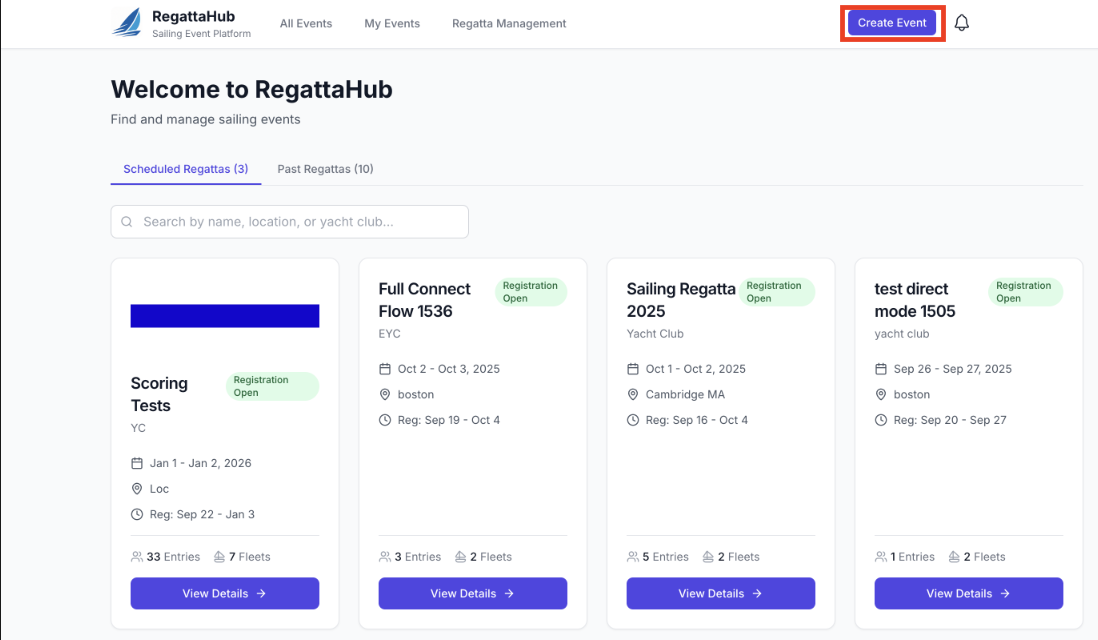
- You'll be taken directly to the billing mode selection screen.
Step 2: Understanding the Billing Gate
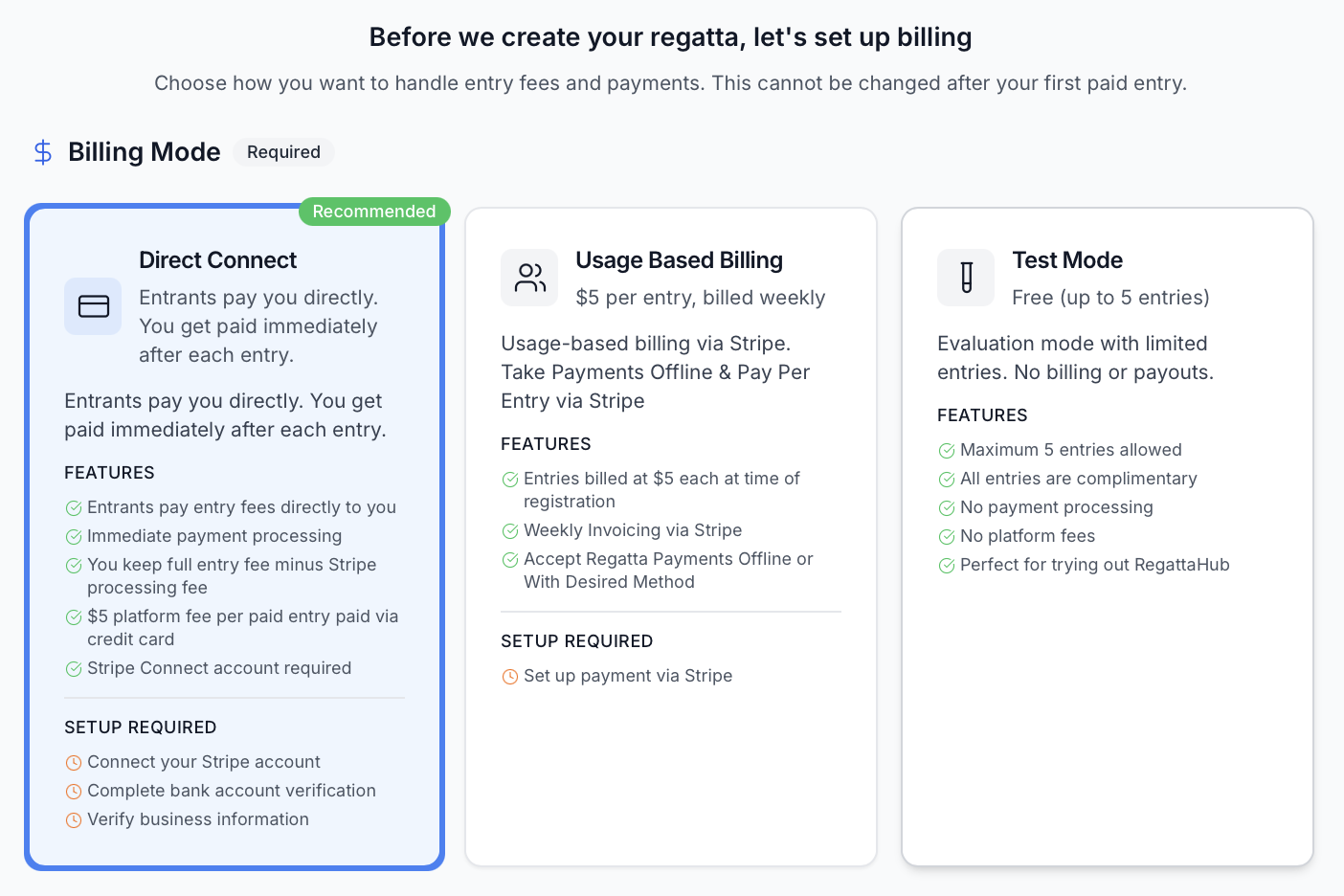
Before you can create your regatta, RegattaHub requires you to select a billing mode. This ensures that payment handling is properly configured before entries start coming in.
Why Choose Billing Mode First?
- Prevents payment processing issues later
- Ensures proper financial setup from the start
- Cannot be changed after creation
- Different modes have different setup requirements
Step 3: Understanding Your Billing Mode Options
RegattaHub offers three billing modes, each designed for different use cases:
Option 1: Direct Connect (Recommended)
- Best for: Regattas that want to collect entry fees directly and get paid immediately.
- How it works:
- Entrants pay entry fees directly to your Stripe account
- Money arrives immediately after each registration
- You keep the full entry fee minus standard Stripe processing fees (2.7% + $0.05)
- $5 platform fee per paid entry (charged via credit card)
- Features:
✓ Immediate payment processing
✓ Accept credit cards, Apple Pay, Google Pay
✓ You control refunds through your Stripe account
✓ Real-time payment notifications
- Setup Required:
- Connect your Stripe account
- Complete bank account verification
- Verify business information
- Set up invoicing for platform fees
- Payment Flow:
- Connect Stripe to accept payments directly
- Set up invoicing to pay RegattaHub platform fees
Note: When you select Direct Connect, you'll be automatically redirected to Stripe to complete the connection process.
Option 2: Usage Based Billing Only (External)
- Best for: Organizers who want to collect payments offline but still use RegattaHub's management features.
- How it works:
- You're charged $5 for each entry added to your regatta
- Collect entry fees from participants using your preferred method (cash, check, bank transfer, etc.)
- RegattaHub invoices you weekly via Stripe
- No direct payment processing through the platform
- Features:
✓ Flexible offline payment collection
✓ Weekly invoicing cycles
✓ Manage payment method through Stripe billing portal
✓ Full access to RegattaHub management features
- Setup Required:
- Set up payment method via Stripe
- Valid credit card for weekly invoicing
- When to Choose This Mode:
- You prefer to handle payments directly with participants
- You're collecting entry fees via cash or check
- You want to use your existing payment processor
- You need more flexibility in payment terms
Note: After clicking "Continue to Stripe Checkout," you'll be redirected to Stripe to set up your payment method. You can return to complete your regatta setup afterward.
Option 3: Test Mode
- Best for: Trying out RegattaHub before committing to a billing mode.
- How it works:
- Evaluation mode with no billing or payments
- Maximum of 5 entries allowed
- All entries are complimentary
- Perfect for learning the platform
- Features:
✓ No payment processing
✓ No platform fees
✓ Full feature access (within limits)
✓ Great for testing workflows
- Limitations:
✗ Maximum 5 entries only
✗ Cannot process real payments
✗ Must upgrade to Direct Connect or Usage Based Billing for larger regattas
- Setup Required:
- None! No payment setup needed
- When to Choose This Mode:
- You're evaluating RegattaHub for the first time
- Running a very small test regatta
- Training staff on the platform
- Wanting to explore features before committing
Important: To accept more than 5 entries or process real payments, you'll need to create a new regatta with Direct Connect or Usage Based Billing. Existing regattas cannot be converted
Step 4: Making Your Selection
Once you've decided on your billing mode:
- Click on the billing mode card that best fits your needs. The card will highlight when selected.
- Review the information panel that appears on the right side, showing detailed workflow information for your selected mode.
- Check the action button at the top right:
- Direct Connect: Shows "Set Up Stripe & Continue"
- Usage Based Billing: Shows "Continue to Stripe Checkout"
- Test Mode: Shows "Continue to Details"
- Click the action button to proceed with setup.
Step 5: Payment Setup Process
For Direct Connect Mode
When you click "Set Up Stripe & Continue":
1. You'll be redirected to Stripe's secure connection page
2. Enter your business email address
3. Complete the Stripe Connect onboarding form
4. Provide your business information
5. Add your bank account details
6. Complete identity verification
7. You'll be redirected back to RegattaHub
Tip: If you already have a Stripe account, you can use the same email address. Stripe will let you connect your existing account.
For Usage Based Billing Mode
When you click "Continue to Stripe Checkout":
1. You'll be redirected to Stripe's billing setup page
2. Enter your payment method (credit card)
3. Review the weekly billing terms ($5 per entry)
4. Confirm your payment method
5. You'll be redirected back to RegattaHub
For Test Mode
When you click "Continue to Details":
1. No payment setup required!
2. You'll proceed directly to entering your regatta details
3. Start creating your regatta immediately
Common Questions
Can I change my billing mode later?
No. Once you receive your first paid entry, your billing mode is locked.
What if I'm not ready to connect my bank account?
Choose Test Mode to explore the platform first. When you're ready to accept real entries, you can create a new regatta with your preferred billing mode.
Do I need a Stripe account already?
No. If you don't have a Stripe account, one will be created for you during the setup process. If you do have an account, you can connect your existing one.
What are the Stripe processing fees?
Stripe charges a standard fee of 2.7% + $0.05 per transaction for Direct Connect mode. This is separate from RegattaHub's $5 platform fee per paid entry.
Can I offer free entries in Direct Connect mode?
Yes! You can set entry fees to $0 for specific fleets.
What happens if I cancel during setup?
Click "Cancel" at the top of the screen to return to Regatta Management without creating a regatta. No data is saved.