
Managing Entries - Getting Started
Your central hub for viewing, managing, and organizing all boat registrations and crew information
Not ready for a real event?
Test all RegattaHub features with mock data — no payment setup required.
Learn how to create a mock regattaThe Entries tab is where you'll spend most of your time as a regatta administrator. This is your central hub for viewing, managing, and organizing all boat registrations and crew information. Whether you have 15 boats or 150, mastering the Entries tab is essential for smooth regatta operations.
Accessing the Entries Tab
Navigation: Admin Dashboard → Entries Tab
The Entries tab is prominently displayed in your dashboard navigation and typically shows a count badge indicating the number of registered boats (e.g., "Entries (47)").
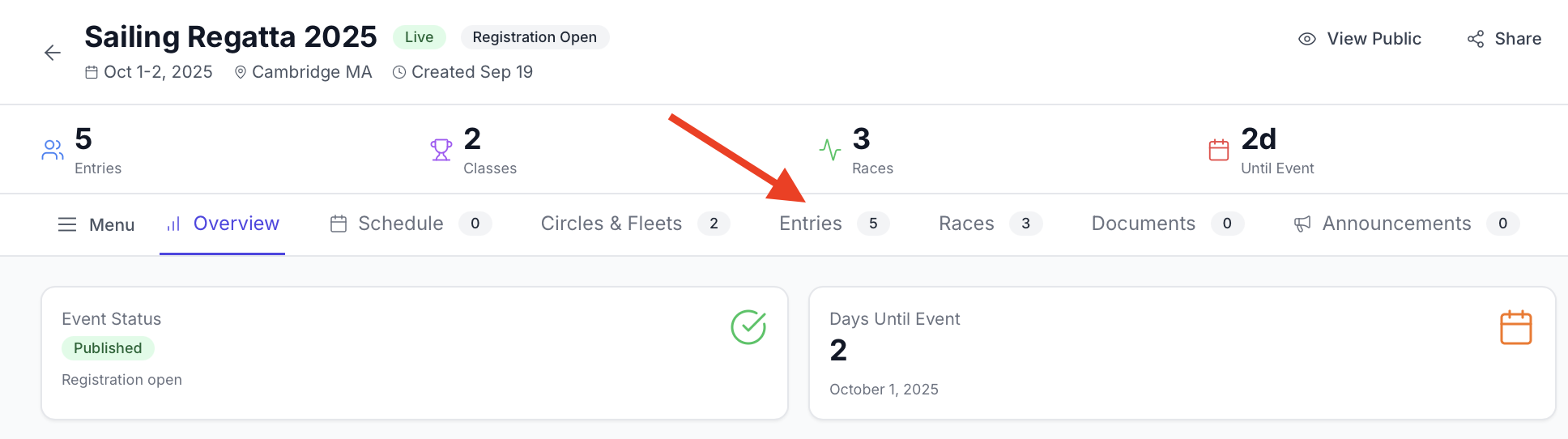
Entries Tab Overview
The Entries tab is organized into three main sections that work together to give you complete visibility and control over your registrations:
- Header Section - Statistics, search, and action tools
- Fleet Organization - Collapsible sections grouping entries by division
- Entry Display - Individual boat and crew information cards
Understanding the Header Section
The header provides essential tools and real-time statistics that you'll use constantly throughout the registration period.

Entry Statistics (Top Left)
Two key numbers that update in real-time:
"X Boats Registered" (Blue Text)
- • Total count of all entries across all fleets
- • Includes approved, pending, and rejected entries
- • Updates immediately when new registrations arrive
"X Total Crew" (Green Text)
- • Sum of all skippers and crew members across all boats
- • Useful for planning food, safety equipment, and facility capacity
- • Updates when crew members are added or removed
Search Bar (Right)
The search function is your fastest way to find specific entries when you have many registrations.
What you can search for:
- • Boat names (full or partial)
- • Sail numbers
- • Skipper names
- • Crew member names
Header Action Buttons (Center)
Full Crew Toggle
Controls how much crew information is displayed in the entry list:
OFF (Default):
- • Shows skipper details only
- • Displays crew count (e.g., "+ 3 crew")
- • Faster loading with many entries
- • Good for general entry management
ON (Full Crew Mode):
- • Expands to show complete crew lists
- • Displays all crew names and contact information
- • Slower loading but more detailed
Scratch Sheet Button
Creates a race committee-ready document:
- • Opens in new browser tab
- • Shows boat names, sail numbers, and fleet assignments
- • Organized by fleet for easy reference
- • Updates automatically with current entries
Check-In Tool Button
Opens the regatta check-in interface:
- • Badge shows number of boats not yet checked in
- • Streamlined interface for quick check-ins
- • Searchable by boat name or sail number
Advanced Edit Button (Beta)
Provides access to bulk operations and advanced management tools:
- • Select multiple entries for bulk actions
- • Move boats between fleets simultaneously
- • Bulk status changes (approve/reject multiple entries)
- • Advanced filtering and export options
Advanced Edit allows powerful changes that affect multiple entries. Use carefully to avoid unintended modifications.
Entry Display
Fleet Organization
Entries are automatically organized by fleet (racing division) to help you manage different classes of boats efficiently.
Fleet Header Structure: Each fleet section displays:
Fleet Name
- • The division name (e.g., "PHRF A", "One Design - J/24", "Cruising")
- • Clearly identifies the racing category
Entry Count
- • Number of boats registered in this fleet (e.g., "12 boats")
- • Updates in real-time as entries are added or moved
Expand/Collapse Control
- • Chevron icon indicating current state
- • Click anywhere on the header to toggle visibility
Managing Fleet Visibility
To expand or collapse a fleet:
- 1. Click anywhere on the fleet header
- 2. Click the chevron icon
- 3. Use keyboard navigation (Tab to header, Enter to toggle)
Entry Action Buttons
Each entry provides quick action buttons for common management tasks:
Edit Button (Pencil Icon)
- • Opens Edit Entry modal
- • Modify boat details, fleet assignment, ratings
- • Change skipper information
- • Update racing specifications
View Details Button (Eye Icon)
- • Navigate to Boat Detail Page
- • See complete information including full crew details
Archive Button (Archive Icon)
- • Soft-delete entry (hides from active list)
- • Preserves data for historical records
Master the Entries tab to streamline your registration workflow. Use search to quickly find specific boats, toggle Full Crew mode based on your task, and leverage bulk operations for faster management of large entry lists.