
Creating a Regatta: Waivers
This section covers configuring waivers, profile requirements, and custom registration fields for your regatta. Proper configuration of legal requirem
Not ready for a real event?
Test all RegattaHub features with mock data — no payment setup required.
Learn how to create a mock regattaThis section covers configuring waivers, profile requirements, and custom registration fields for your regatta. Proper configuration of legal requirements protects both your organization and participants while ensuring you collect all necessary information during registration.
Legal Notice: The waiver functionality in RegattaHub is provided as a tool for your convenience. RegattaHub does not provide legal advice. All waiver text and legal documents should be reviewed by qualified legal counsel familiar with maritime law and liability waivers in your jurisdiction before use.
Event Waiver Configuration
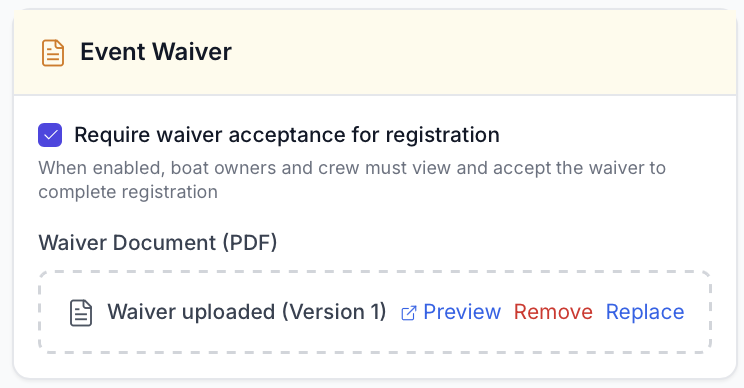
The Event Waiver section allows you to require participants to view and accept a liability waiver before completing registration.
Event Waiver Section
How Waivers Work in RegattaHub
- Organizer uploads a PDF waiver document
- Organizer enables “Require waiver acceptance for registration”
- Participants view the waiver by clicking a link during registration
- Participants accept by checking the acceptance box
- System records acceptance
Enabling Waiver Requirements
Step-by-Step:
- In the Event Waiver section, check the box labeled “Require waiver acceptance for registration”
- Upload your waiver document (PDF format only, up to 10MB)
- Continue with regatta creation
- The waiver will now be required for all registrations
What Happens When Enabled:
- Registration form displays a waiver acceptance section
- Participants must click “read and agree to the waiver here” link
- Link opens waiver PDF in new browser tab
- System tracks that waiver was viewed (via localStorage)
- Acceptance checkbox becomes enabled after viewing
- Participants must check acceptance box to proceed
- Registration cannot be submitted without waiver acceptance
Important: Both boat owners AND crew members must accept the waiver separately. Each person’s acceptance is recorded.
Waiver File Requirements
- Format: PDF only
- File Size: Maximum 10MB
- Recommended: 1-3 pages maximum
- Accessibility: Use readable fonts (11pt minimum)
- File Naming: Use descriptive name (e.g., “2024-Fall-Regatta-Waiver.pdf”)
Waiver Acceptance Tracking
What Gets Recorded
For each participant (skipper or crew), the system records:
- Acceptance timestamp: Date and time waiver was accepted
- User ID: Who accepted the waiver
- Registration ID: Which registration the acceptance is tied to
Viewing Waiver Acceptance Status
After registration, organizers can view waiver acceptance status:
- Navigate to Regatta Management > Entries
- Click on a specific boat entry
- View the Boat Detail Page
- Check the Waiver Status Card showing all crew members
Waiver Status Indicators:
- ✅ Accepted: Green checkmark, shows acceptance date
- ❌ Not Accepted: Red X, requires action
- ⚠️ Pending: Yellow warning if waiver viewed but not accepted
Waiver Requirements During Registration
User Experience Flow
When a participant registers for an event with a required waiver:
- Registration form loads with all standard fields
- Waiver section appears in amber/yellow highlighted box
- Participant clicks “read and agree to the waiver here” link
- Waiver opens in new browser tab (as PDF)
- System marks waiver as viewed
- Acceptance checkbox enables
- Participant checks acceptance box
- Submit button enables (if all other fields valid)
Error Prevention
The system prevents registration submission if:
- Waiver has not been viewed (link not clicked)
- Waiver has not been accepted (checkbox not checked)
- Connection fails to load waiver PDF
Error messages guide participants:
- “Please view the waiver before continuing”
- “Please accept the waiver to continue”
- “You must view the waiver before you can accept it”
Testing Your Waiver Configuration
Before opening registration, test the waiver flow:
- Upload a test waiver PDF during regatta creation
- Enable waiver requirement
- Complete regatta creation
- Open the public registration page (as if you’re a participant)
- Verify waiver link opens correctly in new tab
- Test acceptance checkbox enables after viewing
- Attempt to submit without viewing/accepting (should fail)
- Complete a test registration with waiver acceptance
- Verify acceptance recorded in admin Boat Detail view
User Registration Journey
Understanding the user experience helps you configure waivers appropriately.
Step-by-Step Registration Flow
1. Participant Opens Registration Page
- Sees regatta details, dates, venue
- Reviews entry fees and late fee schedule
- Clicks “Register Now” button
- Waiver Acceptance (if enabled)
- ⚠️ Amber-highlighted waiver section appears
- Clicks “read and agree to the waiver here” link
- Waiver PDF opens in new tab
- Returns to registration form
- System marks waiver as “viewed”
- Acceptance checkbox becomes enabled
- Checks “I have read and accept the waiver” box
- Cannot proceed without acceptance
RegattaHub supports waiver acceptance but not signing. There is no e sign functionality.