
Navigating My Entry Page
Understand your entry management dashboard and manage all your regatta participation details
Understanding RegattaHub Areas
RegattaHub has three main areas of the application:
- Regattas - Browse and view available sailing events
- My Events - Manage your registrations and entries
- Regatta Management - Available only for race organizers and administrators
This guide focuses on the My Events page, where you manage all the regattas you are a participant in, whether as a skipper or crew member. As a skipper or boat owner, this is where you modify your registration, invite crew, and make event purchases.
How to Access
The "My Events" page can be accessed from anywhere in RegattaHub while you're logged in. On the top menu bar, find and click "My Events".
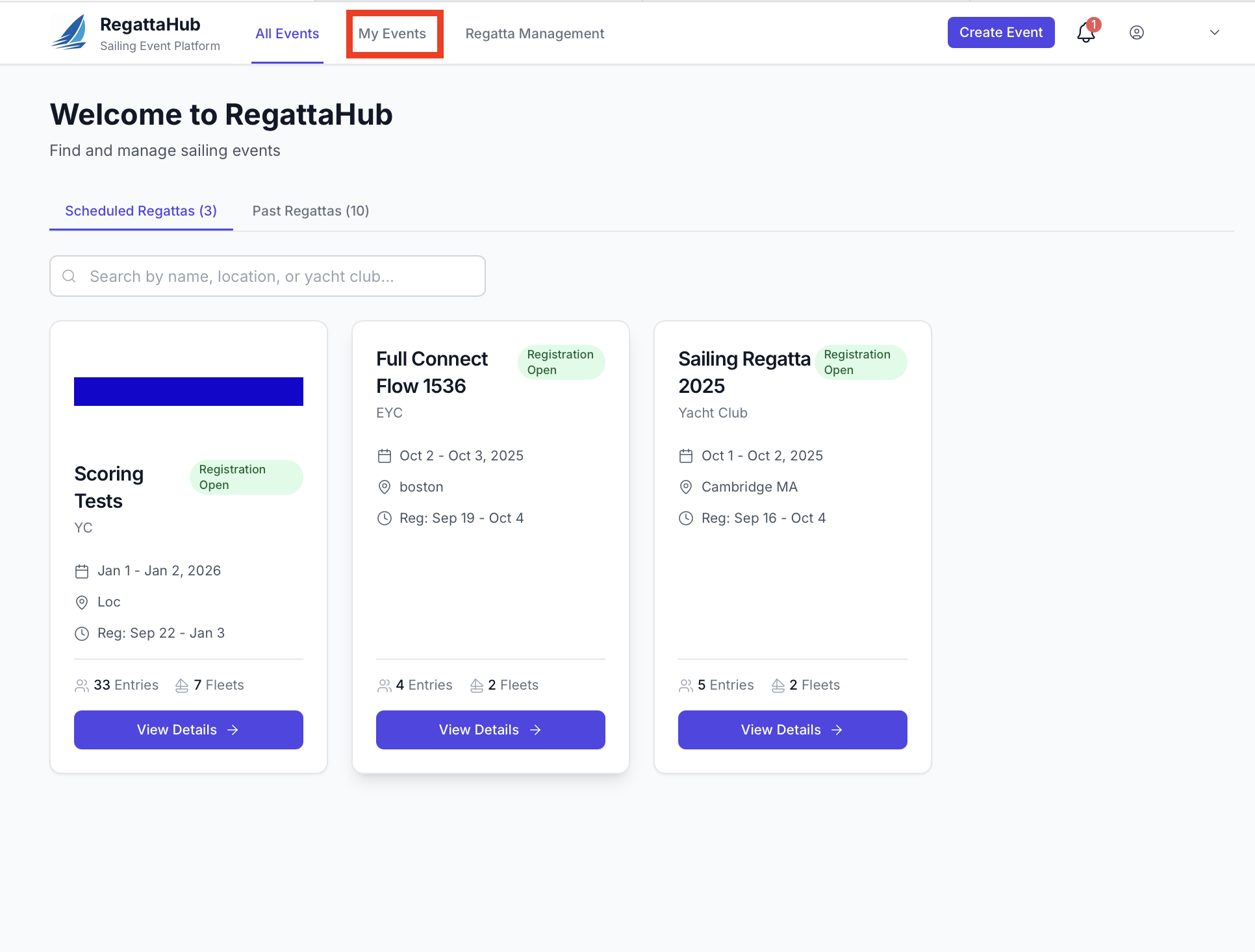
My Events Page Layout
The My Events page displays a grid layout of all the events you are registered for. Each event card shows an overview including skipper and crew status, and whether your entry is approved.
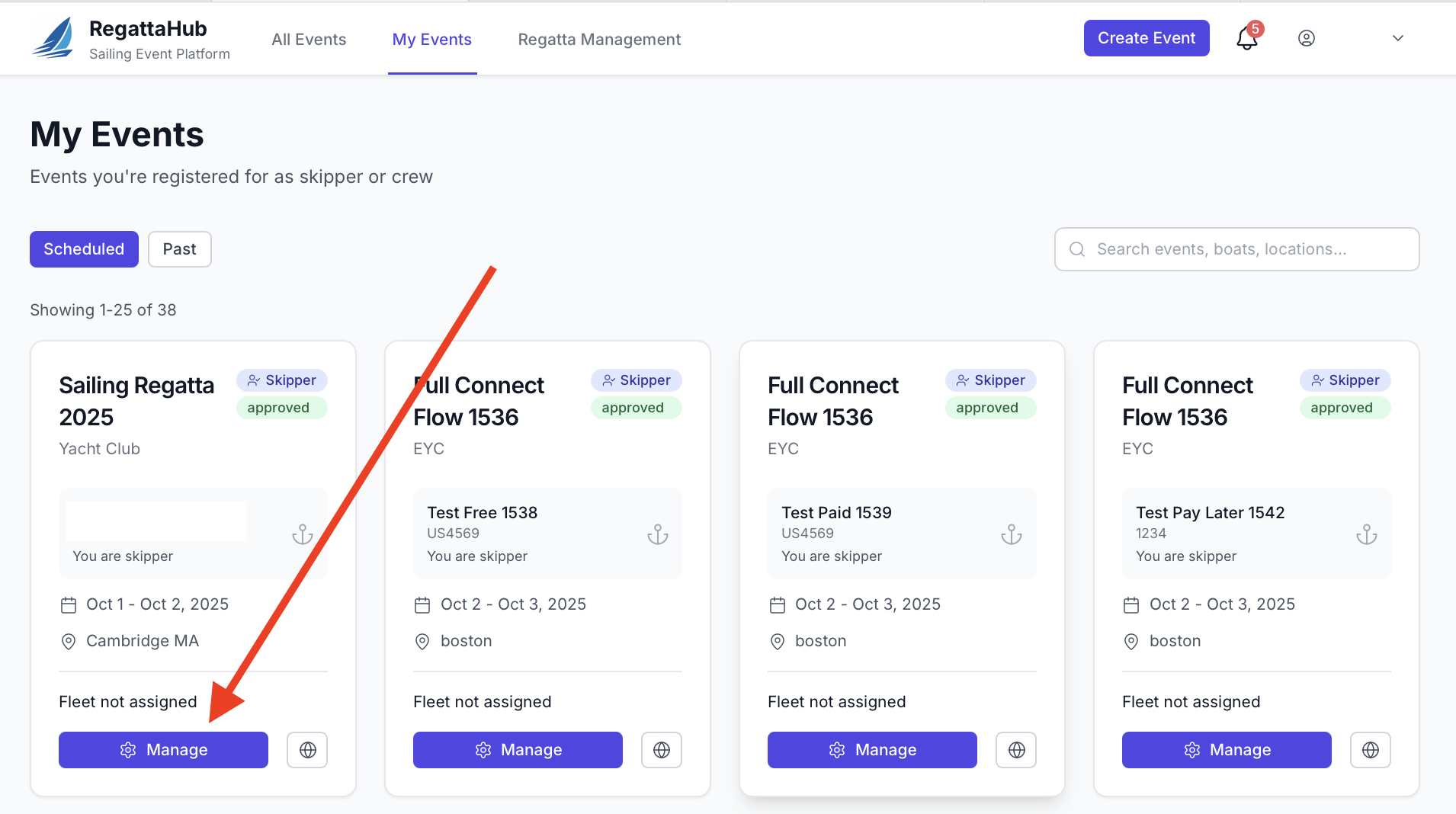
To manage a specific entry, click the "Manage" button on the regatta card.
Managing a Specific Event
The Event Layout
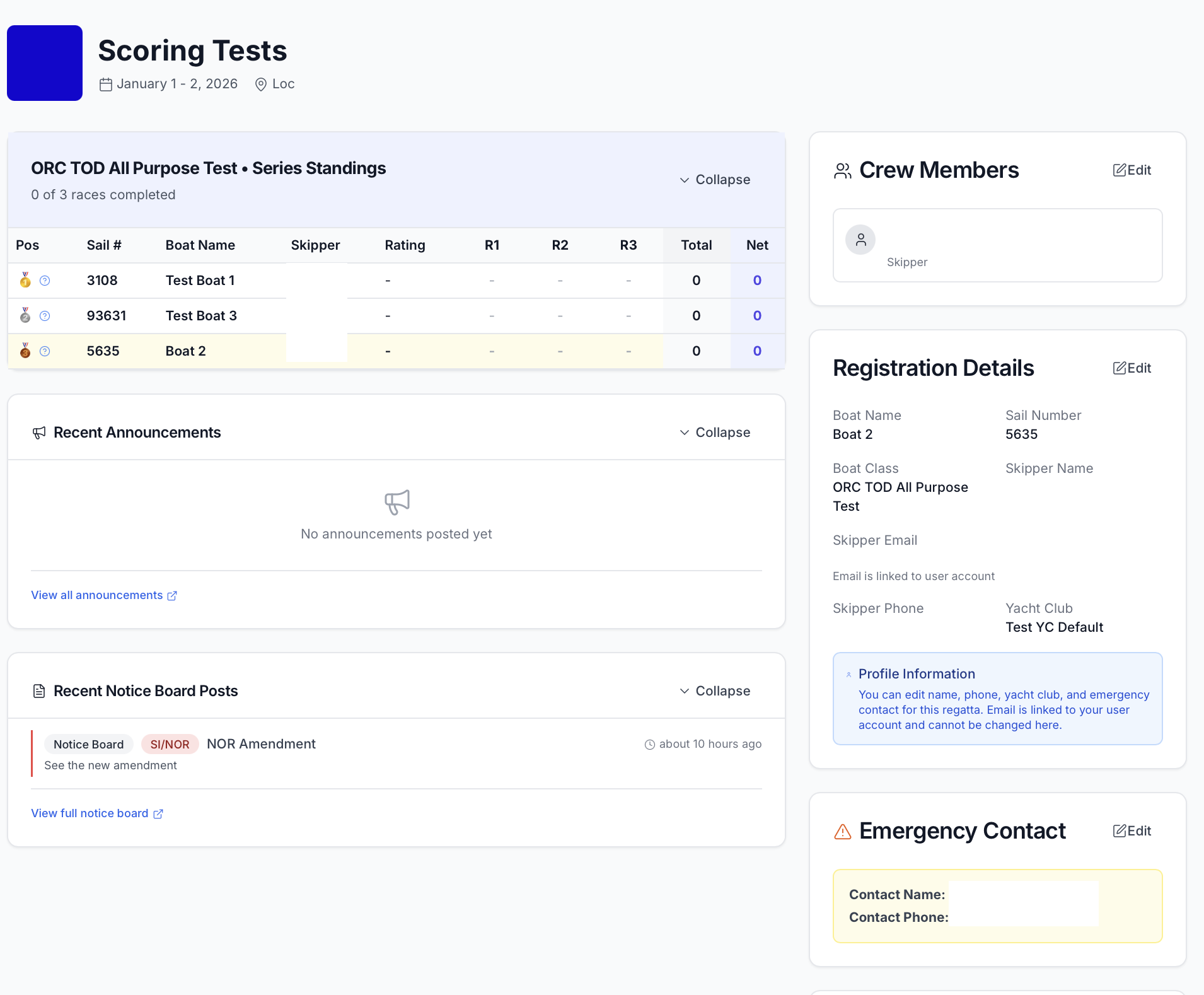
The Event Management page contains several key sections:
Right Column
- Crew Members - Track the status of added crew members and their invitations
- Registration Details - View all details of your current registration and make edits
- Emergency Contact - View and edit emergency contact information
- Ratings - View and update rating values (if applicable) for the regatta
- Rating Certificates - Upload a rating certificate if needed
Left Column
- Series Results - Race results for the fleet you are participating in
- Recent Announcements - Latest announcements posted by the race organizers
- Recent Notice Board Posts - Important notice board posts from organizers
- Products - Available purchases for the regatta (storage fees, merchandise, passes, etc.)
Editing Event Details
To edit specific details, click the "Edit" button above any panel and make changes on the form that appears.
Make the necessary edits on the form that appears.
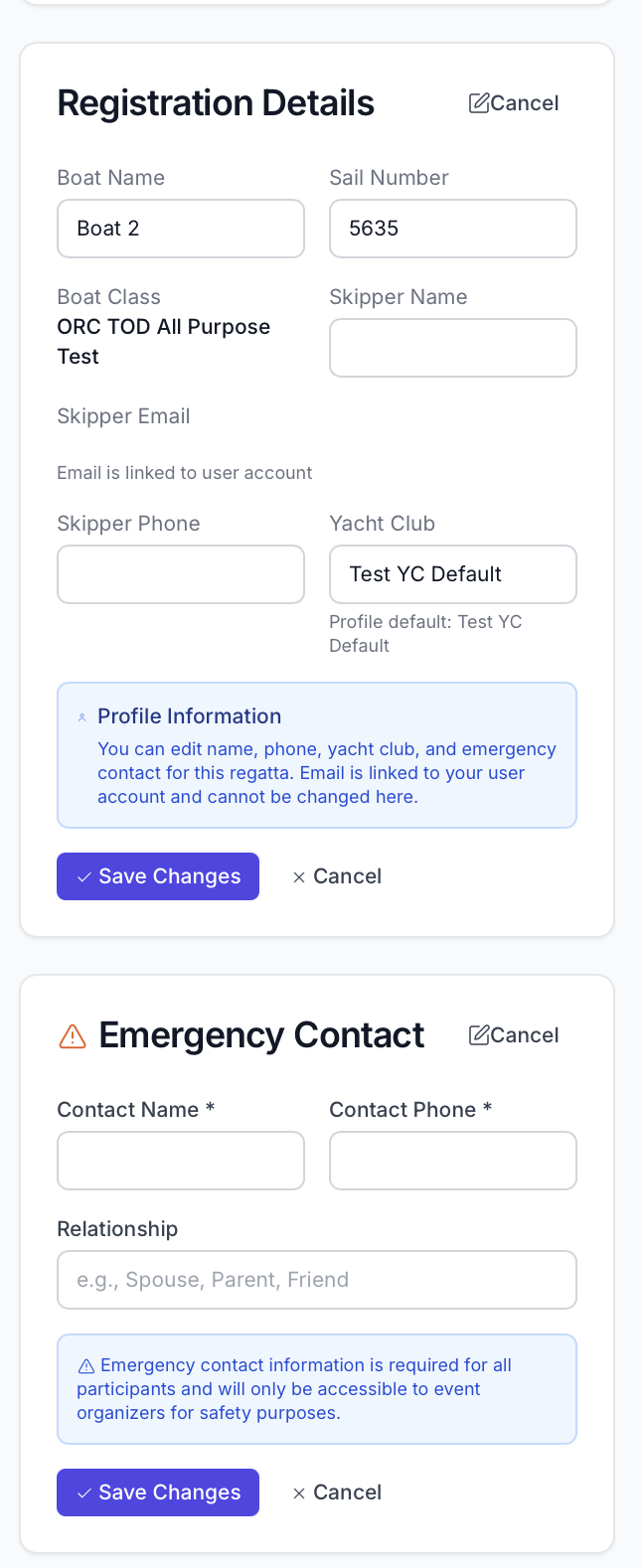
Be sure to click "Save Changes" when you are finished editing, or your changes will be discarded.