
Pursuit Races (TOD): Start Times & Results
Publish pursuit start times, choose the active course, enter finishes, and publish results
Pursuit races use staggered starts (slower boats start first; faster boats start later) so boats can finish close together. In RegattaHub, pursuit races are currently supported for TOD (PHRF Time on Distance) fleets.
This article covers race-day operations (publishing start times, exports, entering finishes, and publishing results). For setup (create/edit, timing guardrails, and course distance options), see Pursuit Races (TOD): Setup (Create & Edit).
Before You Begin
- Create the pursuit race first: You’ll need a pursuit race under a TOD fleet with one to five course distance options configured.
- Confirm ratings are present: Start times are calculated from each boat’s handicap profile (PHRF TOD). Missing ratings can produce missing or unexpected start times.
- Decide which course you’re sailing: If you configured multiple course options (Short/Medium/Long), choose which one is active before you enter finishes.
Open the Pursuit Start Times Modal
- Open your regatta’s admin page.
- Click the Pursuit Races tab.
- On the pursuit race card, click View Start Times (eye icon).
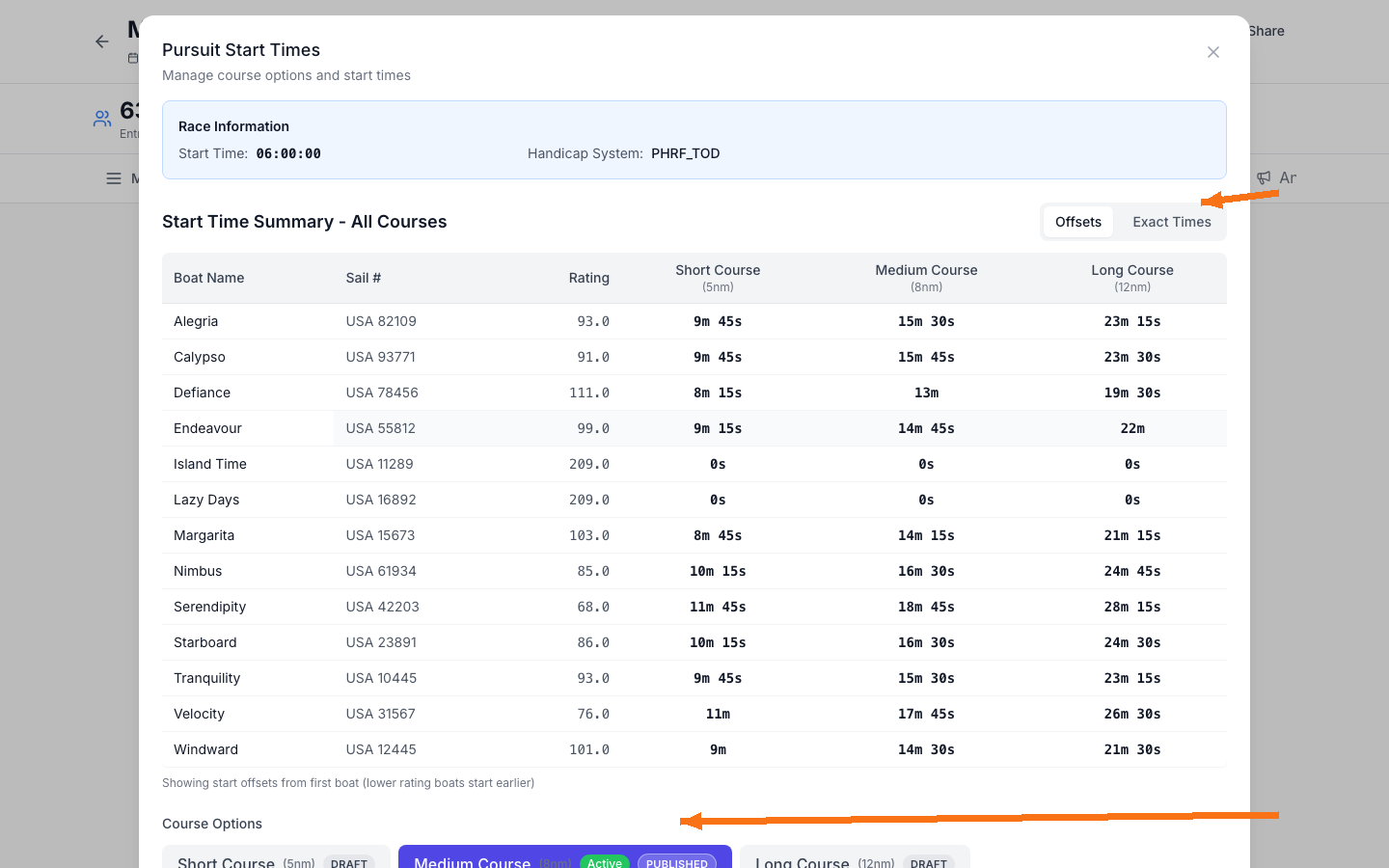
Draft vs Published vs Active
Pursuit races can include multiple course options. Each course option can have a different status:
- Draft: start times exist for admins, but they are not visible to competitors on the public regatta page.
- Published: start times are visible to competitors on the public regatta page (and can be shared via email/notice board).
- Active: the course option currently used when entering finishes and publishing results.
Publish Start Times (and Export)
- Select the course option you’re using (for example, Medium Course).
- Click Publish Start Times (or Re-publish Start Times if already published).
- Optionally, use Export CSV or Export PDF to share or print the start-time sheet.
If you update course distances or timing guardrails, regenerate start times and re-publish so competitors see the latest official times.
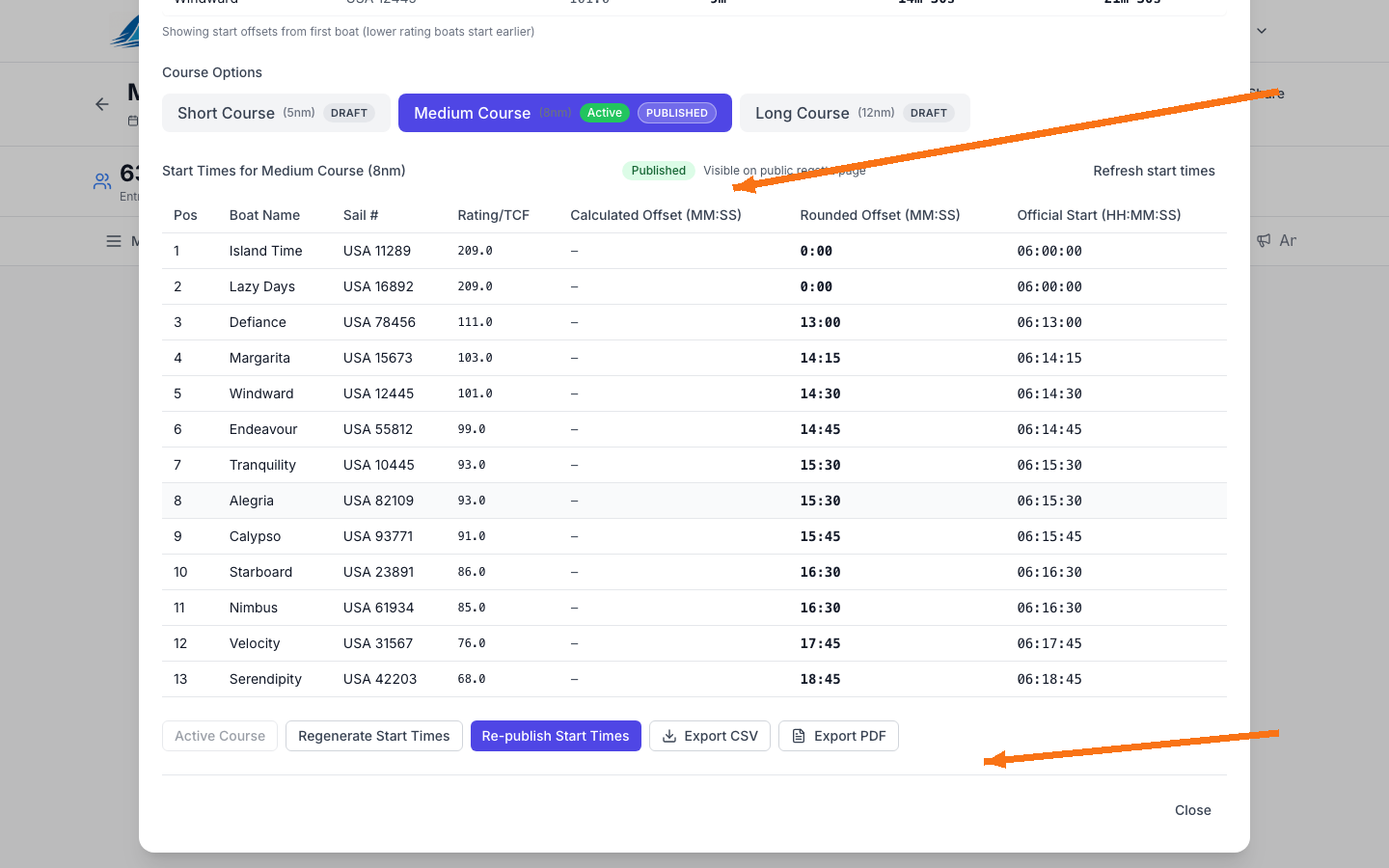
When to regenerate start times
Use Regenerate Start Times when something changes that affects start offsets (for example, ratings were updated, boats were added/removed, or you adjusted timing guardrails). After regenerating, publish or re-publish to make the updated start times official.
Set the active course
Use Set as Active to choose which course option is used for finish entry and results. If the course is already active, the button is disabled and shows Active Course.
Choose the active course before you begin entering finish times to avoid rework.
Enter Finishes, Calculate Times, and Publish Results
After racing, enter finish times for the active course option and publish results to competitors.
- From the Pursuit Races tab, click Enter Finishes (flag icon) on the race card.
- Confirm the Active Course at the top of the page matches what was sailed.
- Enter each boat’s Finish Time as HH:MM:SS and set its Status to Finished.
- Click Calculate Times to compute elapsed/corrected times and positions.
- Click Save Draft to save without publishing, or Publish Results when ready.
Changing the selected course during finish entry can clear entered finish times. Set the correct course first, then enter finishes.
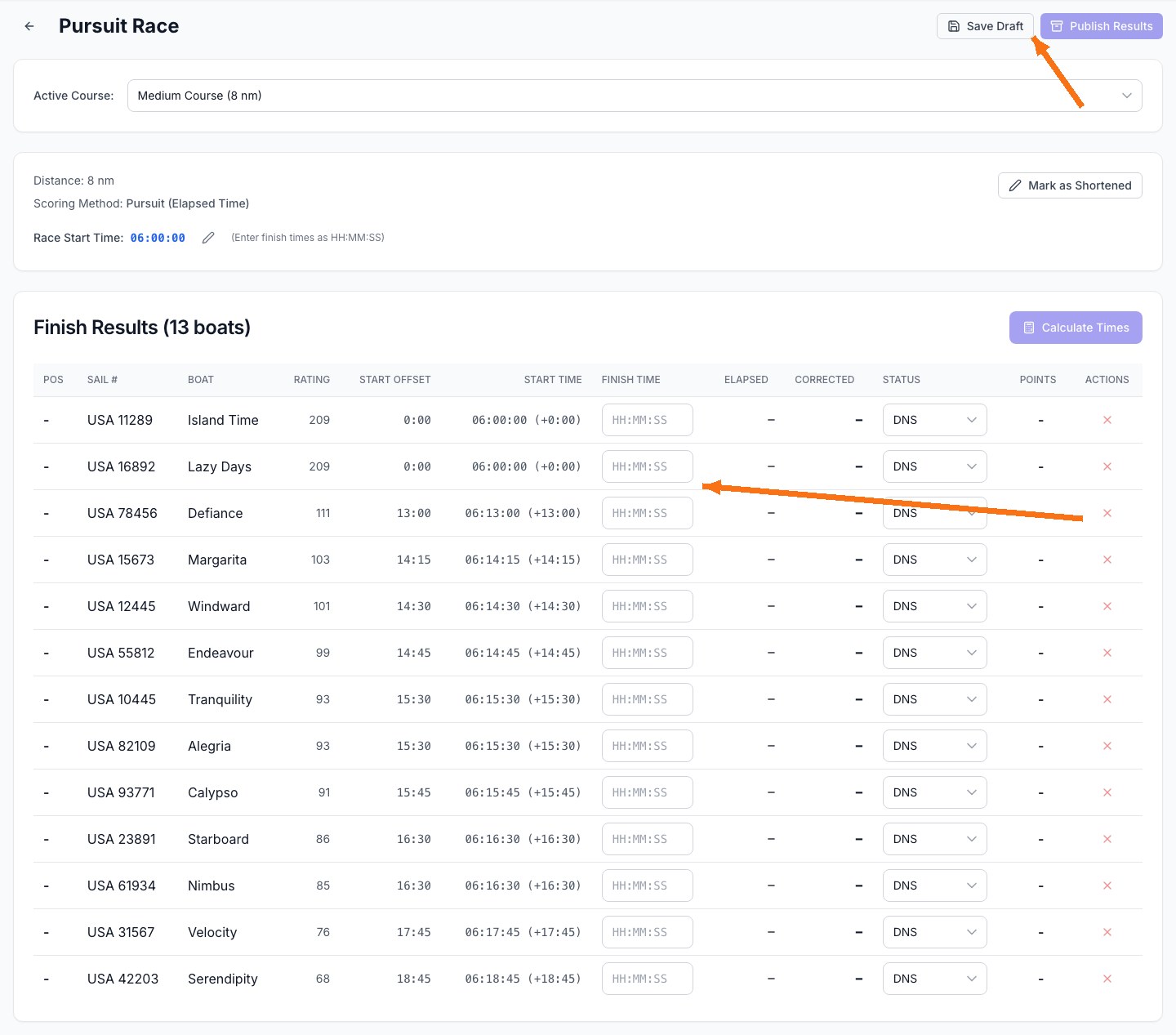
If the course was shortened
Use Mark as Shortened to enter the actual sailed distance. After updating the distance, click Calculate Times again to refresh corrected times and results.
Next Steps
- Set up course options and timing guardrails for pursuit races (admin).
- Help participants find their start times (participant guide).